What TG-Downloader Does and Interface Overview
Learn how TG-Downloader handles manual downloads, batch downloads, auto monitoring, auto forwarding and browser-extension downloads, plus app and Telegram accounts.
TG-Downloader moves files from Telegram to your computer and can repost new messages to another Telegram group or channel. There are five main entry points:
| Goal | Feature |
|---|---|
| Save a file from one message | Manual Download |
| Pull a group or channel history | Batch Download |
| Keep up with new files | Auto Monitor |
| Sync new messages to another group or channel | Auto Forward |
| Select or batch-send media in Telegram Web | Browser Extension |
Downloads and browser batches appear in Downloads, where you can track progress, pause, resume, cancel and clean up. Auto Forward has its own rule list and does not create download tasks.
Three names to understand
| Name | What it is | Where to manage it |
|---|---|---|
| App account | Your TG-Downloader email account, holding membership and points | Top-right of the header |
| Telegram account | The account used to perform downloads | Accounts in the sidebar |
| Device | This computer. Concurrent-device limits depend on your plan | Recorded automatically |
The full flow is: sign in to the app account → add a Telegram account → choose a download feature. The two account types are separate.
Supported content
- Public group and channel links
- Private groups that the active Telegram account has joined
- Videos, images, documents, archives and audio
- Comments and replies when your plan supports them
- Forwarding accessible messages to a destination chat where the account can post (Pro)
- Direct downloads in Telegram Web, or sending a selected batch to the desktop app
TG-Downloader supports multiple Telegram accounts, HTTP / HTTPS / SOCKS4 / SOCKS5 proxies, resumable downloads, English and Chinese interfaces, light or dark themes, and a Chrome / Chromium browser extension.
What it does not do
- It cannot download content your active account cannot access.
- It cannot recover deleted messages.
- It is not cloud storage and does not sync files or history between computers.
- It does not forward messages outside a configured rule or backfill history that predates the rule.
- It does not copy members, permissions or group structure. Auto Forward is not bidirectional mirroring.
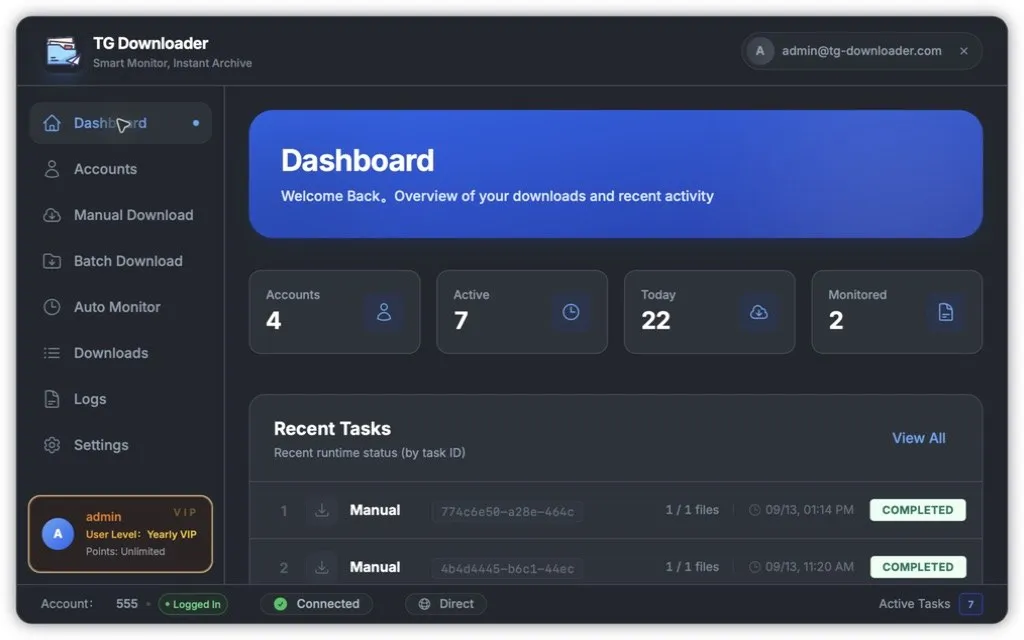
Interface overview
The interface has four areas:
- Left sidebar: Dashboard, Accounts, Manual Download, Batch Download, Monitoring, Auto Forward, Downloads, Logs and Settings.
- Header: app name on the left, sign-in state or app account on the right.
- Account card: user name, membership tier and remaining points.
- Status bar: active Telegram account, network and proxy state, and running task count.
When signed out, the account card prompts you to sign in:
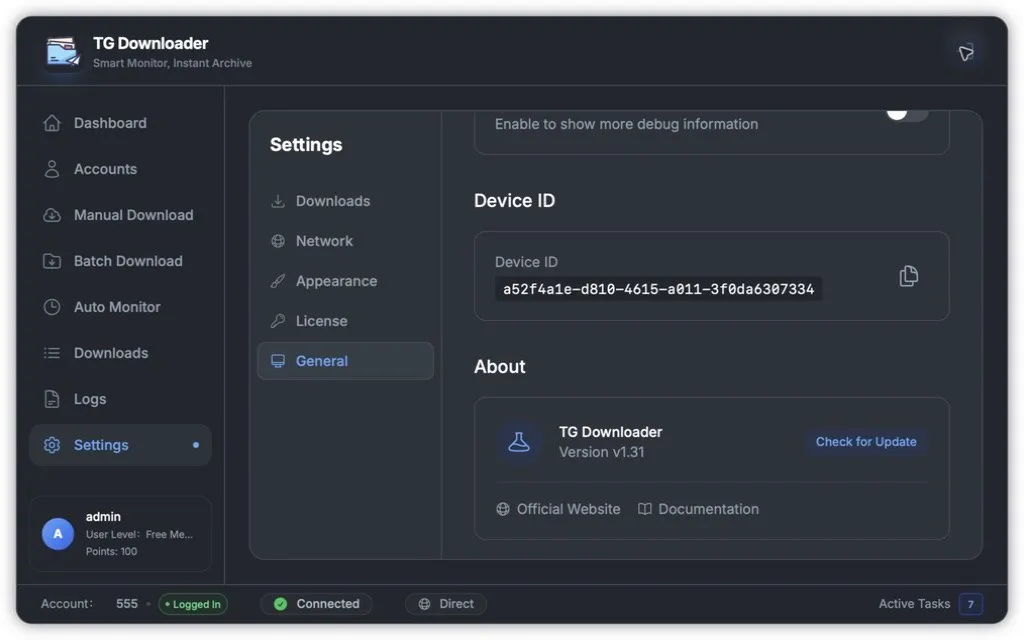
The blue dot marks the current page. The ✕ beside your email signs out; it does not close the window.
Manage the browser extension and default download account under Settings → Browser Extension. See Browser Extension Downloads. Auto Forward rules are covered in Group Auto Forwarding Rules.