Logs and Troubleshooting
Use TG-Downloader logs to troubleshoot downloads, monitors and sign-in problems, understand INFO, WARN and ERROR, and prepare support details.
When a download fails, a monitor stays quiet or sign-in misbehaves, open Logs first.
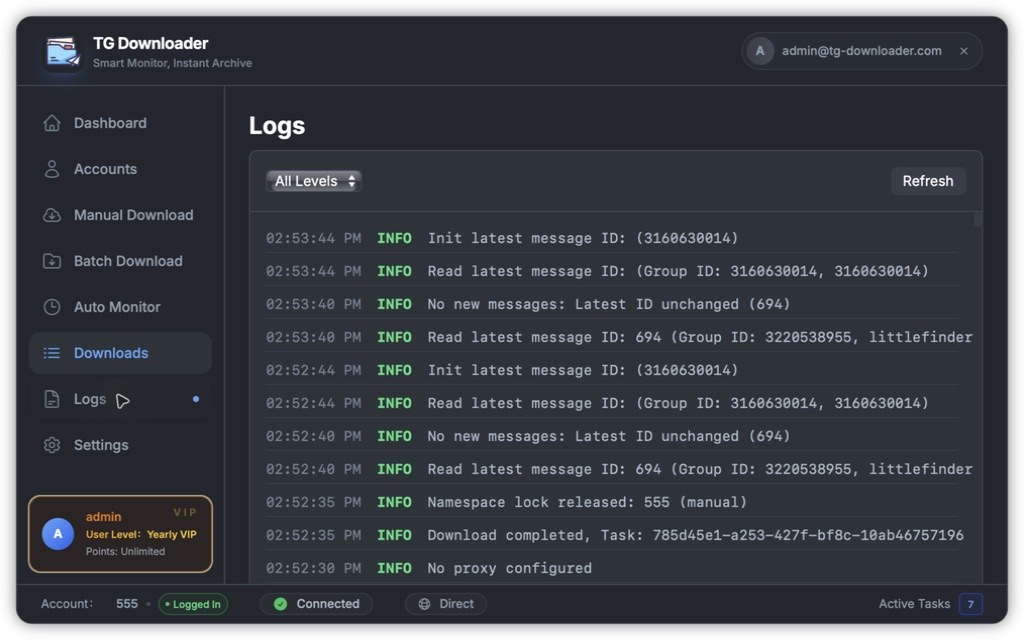
Filter and refresh
- Use the top-left filter for All Levels / INFO / WARN / ERROR. Start with ERROR when troubleshooting.
- Click Refresh to reload recent entries.
- Each line contains time + level + message.
Normal log lines
| Log | Meaning |
|---|---|
| Read latest message ID / Init latest message ID | A monitor is polling |
| No new messages: Latest ID unchanged | Nothing new in this poll |
| Download started / Download completed | A task started or ended |
| No proxy configured | The app uses a direct connection |
Log levels
| Level | Meaning |
|---|---|
| INFO | Normal workflow |
| WARN | A recoverable problem, retry or invalid session |
| ERROR | A real failure and the first place to look |
What to include when asking for help
- The ERROR lines as text or a screenshot.
- The feature and group involved.
- The Device ID from Settings → General.
- Your operating-system version.
See the FAQ for common problems.