Group Auto Forwarding Rules
Create an Auto Forward rule in TG-Downloader to send new messages from a source group or channel to another chat, with filters, replacements and previews.
Auto Forward checks a source group or channel and sends matching new messages to another destination chat. It is a Pro feature for content sync, channel reposting and one-way mirroring between groups.
Auto Forward vs Auto Monitor
| Auto Monitor | Auto Forward | |
|---|---|---|
| Result | Downloads new files to your computer | Sends new messages to another Telegram chat |
| Direction | Telegram → local disk | Telegram → Telegram |
| Entry | Monitoring in the sidebar | Auto Forward in the sidebar |
| Typical use | Build a local media archive | Keep another group or channel in sync |
Both features check every 60 seconds, but they do different jobs. Use Auto Monitor to save files and Auto Forward to repost messages.
Rule list
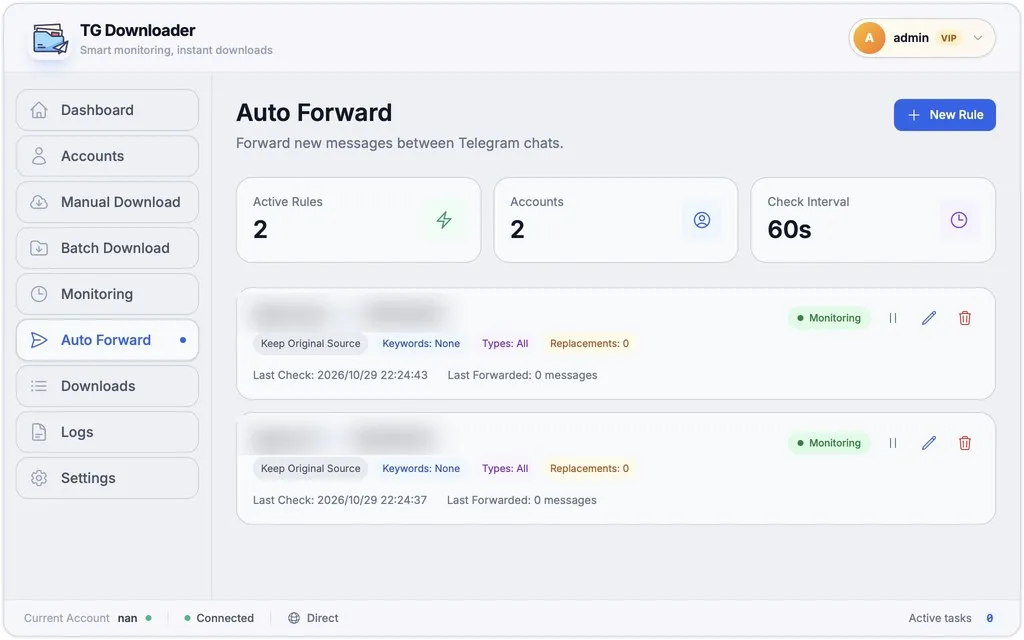
The top cards show enabled rules, accounts in use and the check interval. Each rule card displays:
- Source chat → destination chat.
- Forward mode, keyword count, message types and replacement count.
- Last check time, last forwarded count and current status.
- Last Error when the rule has a recorded failure.
| Status | Meaning |
|---|---|
| Monitoring | Enabled and checking the source |
| Queued | New messages were found and are waiting to run |
| Forwarding | Matching messages are being sent |
| Disabled | Paused; the source is no longer checked |
Use the buttons on the right to pause, edit or delete a rule. Disabling a rule while it is forwarding asks for confirmation and cancels the current forwarding task.
Create a rule
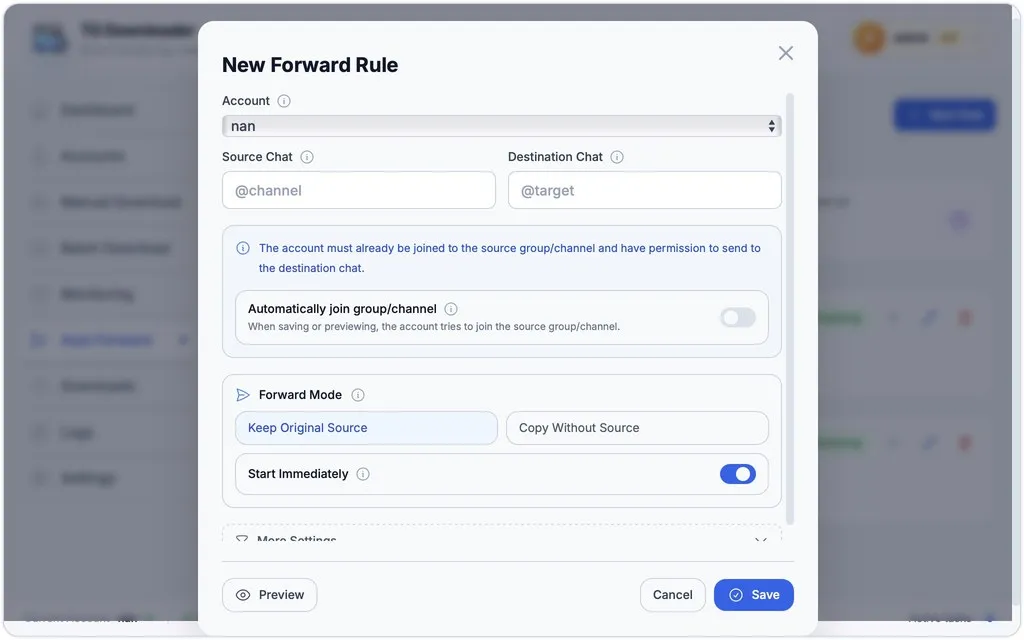
- Click New Rule.
- Choose the Account that will read the source and send to the destination.
- Enter the Source Chat and Destination Chat. Usernames,
t.melinks and numeric IDs are supported. - Turn on Automatically join group/channel if needed.
- Choose a forward mode and whether to start immediately.
- Click Save.
Permission requirement: The account must already be joined to the source group/channel and have permission to send messages in the destination chat. Join private sources manually with that account first.
Accepted chat references
| Input | Example | Notes |
|---|---|---|
| Username | @channel_name | Must be resolvable by the selected account |
| Full link | https://t.me/channel_name | Works for accessible public chats |
| Private message link | https://t.me/c/123456789/42 | The group ID is taken from the link |
| Numeric ID | 123456789 | Use when you already know the chat ID |
Automatic join
When enabled, the app tries to join the source with the selected account while saving or previewing.
- It is most reliable for resolvable public groups and channels.
- Private groups and channels must still be joined manually.
- If joining fails, the rule is not saved. Fix the account or group permission and try again.
Forward modes
| Mode | Result |
|---|---|
| Keep Original Source | Keeps the original channel or sender header |
| Copy Without Source | Sends the content as a new message without the original source header |
Keyword replacements or Remove Original Text automatically switch the rule to Copy Without Source, because the message body must be rewritten.
More settings
Open More Settings to configure delivery behavior and content filters.
| Setting | What it does |
|---|---|
| Send Silently | Forwards without a normal notification to destination members |
| Remove Original Text | Sends the media without its original caption or description |
| Disable Album Grouping | Does not treat multiple messages from one album as a grouped post |
| Include Keywords | Forwards only when the text matches |
| Exclude Keywords | Skips the message when any excluded keyword matches |
| Keyword Matching | Uses plain text or a regular expression |
| Include Logic | Matches any include keyword or requires all of them |
| Case Sensitive | When off, Telegram and telegram match the same text |
| Message Types | Text, photo, video, audio, file or other |
| Keyword Replacements | Rewrites message text with ordered replacement rules |
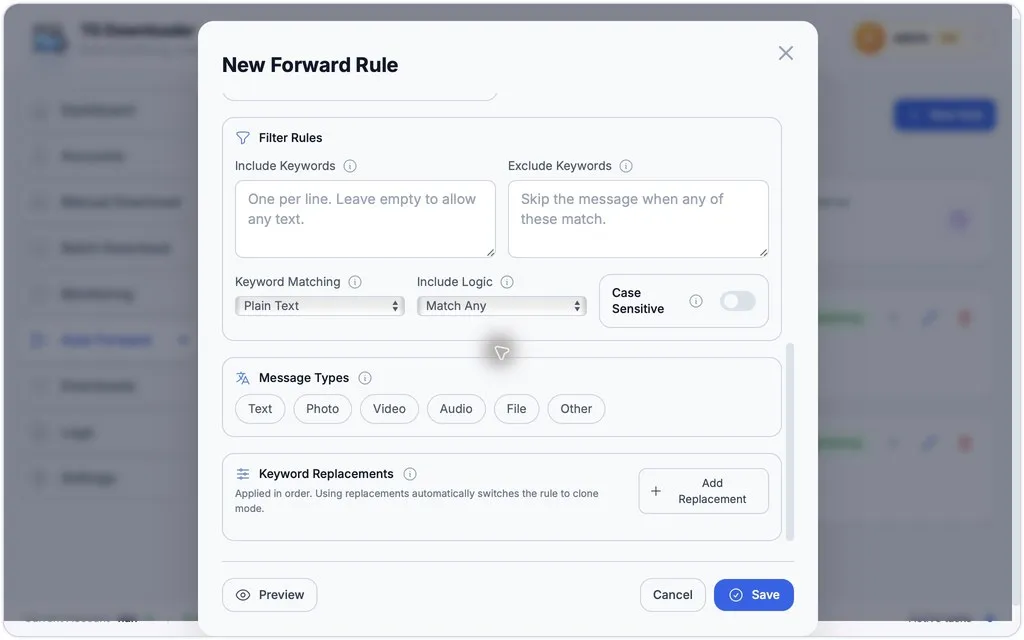
Enter one keyword per line. Include and exclude filters can be used together, and exclusions take priority. If no message type is selected, all types are allowed.
Keyword replacements change only the message text or media caption, not the media file. Rules are applied in order, and any replacement automatically forces Copy Without Source.
Preview before saving
After choosing an account and entering a source, click Preview. The app reads recent messages and shows:
- How many messages were checked, matched and filtered.
- Whether each sample Will Forward or Will Skip.
- The reason for a skipped item, such as a type mismatch, excluded keyword or missing include keyword.
- The original text and the text after replacement.
Preview does not create a forwarding task. Use it before saving to catch both unwanted and missing matches.
Runtime limits
- A new rule records the current newest message on its first check and only processes later messages. It does not backfill history.
- After the app restarts, enabled rules continue from the newest message at restart time. Messages received while the app was closed are not forwarded.
- A disabled rule is not checked. Re-enabling it resumes from the last processed position and can process messages received while it was disabled.
- The source is checked every 60 seconds, so forwarding is not instant.
- One rule handles one source and one destination. Create multiple rules for multiple destinations.
- Auto Forward does not copy members, permissions or group structure, and it is not bidirectional mirroring.
- If no messages match, the position still advances so old messages do not block later content.
- This version does not provide per-message retry. A failed message is recorded, and later messages continue to be processed.
Nothing forwarded or forwarding failed
- Confirm the rule says Monitoring, not Disabled.
- Use Preview to check whether recent messages match the filters.
- Confirm the account has joined the source and can send in the destination.
- Check Last Error on the rule card and Logs.
- A new rule does not forward history. Use Batch Download first if older content is needed.
- If a private source cannot be joined automatically, join it manually in Telegram before saving the rule.
See the Troubleshooting Guide for other common issues.