Network and Proxy Settings
Add HTTP, HTTPS, SOCKS4 or SOCKS5 proxies in TG-Downloader, test the connection and interpret authentication, timeout and DNS errors.
If Telegram is slow or repeatedly times out on a direct connection, configure a proxy under Settings → Network.
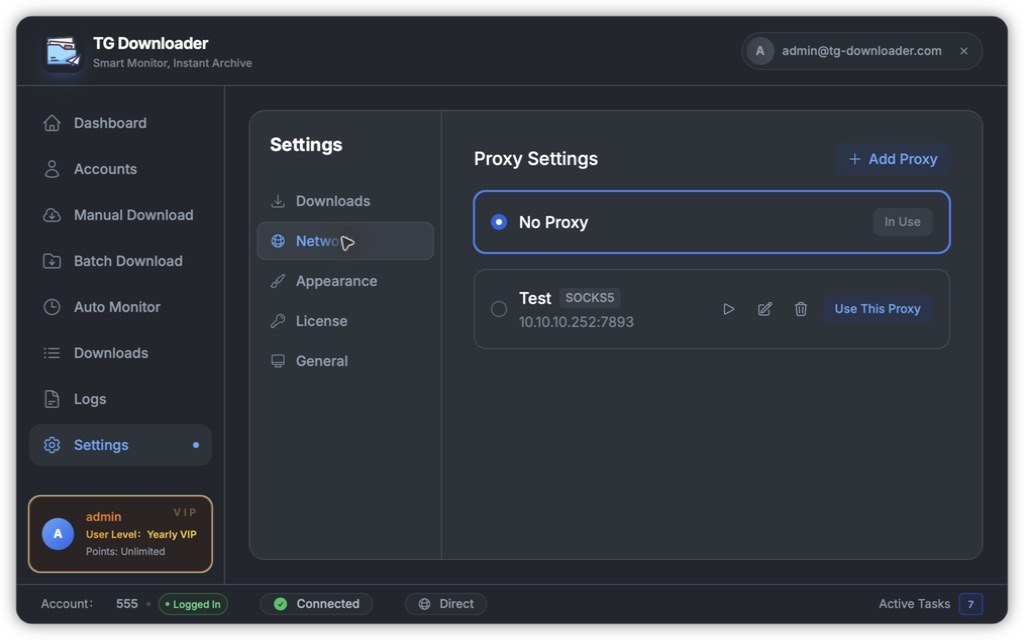
Add a proxy
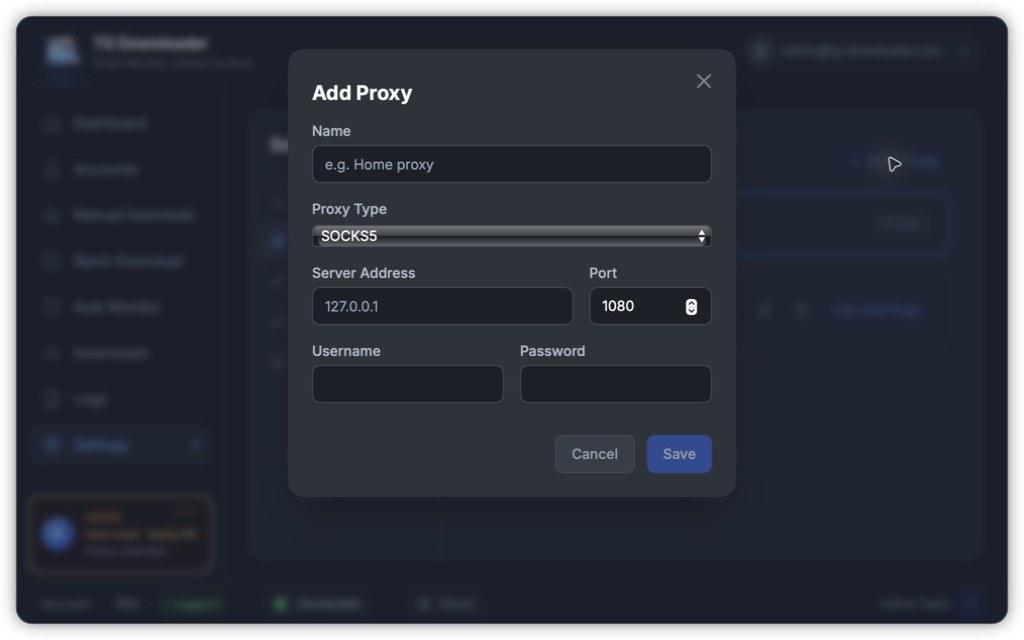
- Click Add Proxy.
- Choose HTTP / HTTPS / SOCKS4 / SOCKS5.
- Enter the server address and port. Add a username and password only if required.
- Optionally enter a profile name such as Home proxy.
- Save, click Test, then click Use This Proxy after it passes.
You can save several profiles and switch at any time. Click No Proxy to use a direct connection.
The status bar shows Direct or Proxy and updates immediately, but never displays the proxy address or credentials.
When a proxy helps
- Telegram is slow or times out on a direct connection.
- The status bar remains on Connection Failed or Checking.
- Download speed is clearly below what the connection can support.
Failed test messages
| Message | Usually means |
|---|---|
| Proxy authentication failed | Wrong username or password |
| Connection refused | Wrong address or port, or the proxy app is not running |
| Connection timed out | The network or proxy server is unreachable |
| Domain resolution failed | A DNS or network problem |
| Unsupported proxy protocol | Use HTTP, HTTPS or SOCKS5 |