Downloads List and Task Management
Track download progress and statuses in TG-Downloader, open file locations, retry individual files, clear records or delete local files.
Manual, Batch and Auto Monitor downloads all appear in Downloads.
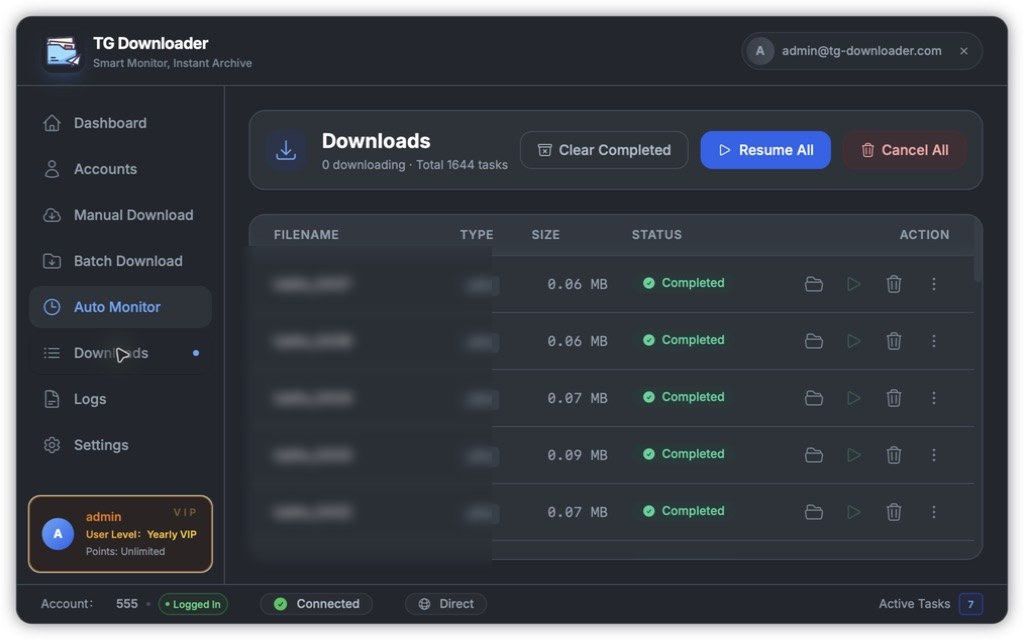
Top-level actions
| Button | What it does |
|---|---|
| Clear Completed | Removes completed records without deleting local files |
| Resume All | Starts waiting and paused tasks |
| Cancel All | Cancels every unfinished task |
Row actions
| Icon | What it does |
|---|---|
| Folder | Opens the file location in Finder or Explorer |
| Play | Downloads this single file |
| Bin | Deletes the record immediately with no confirmation; the local file remains |
| More | Opens the delete menu |
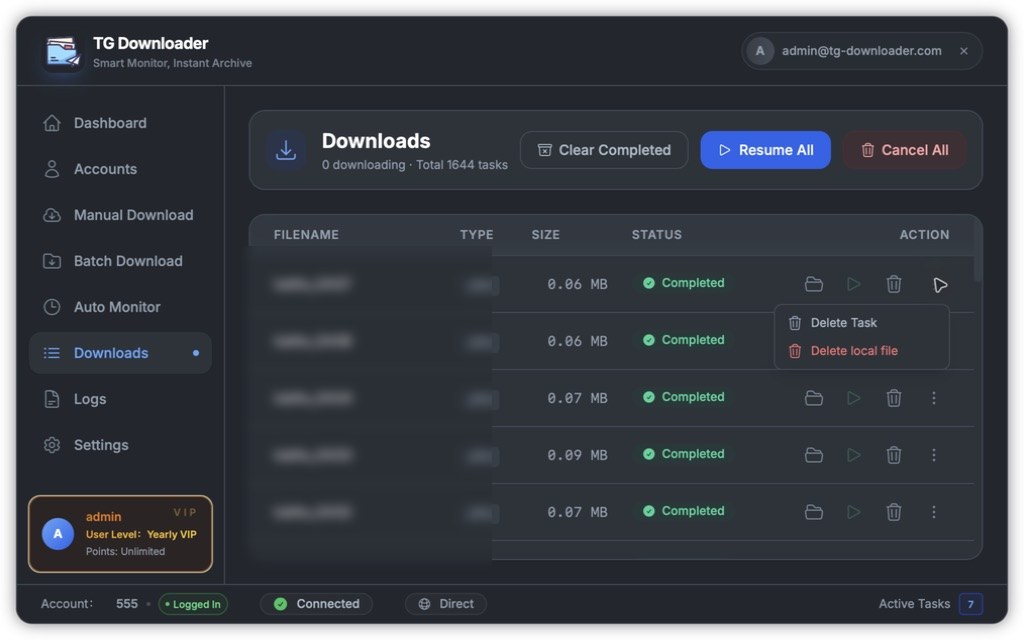
The More menu can delete only the task or choose Delete local file. The latter asks for confirmation.
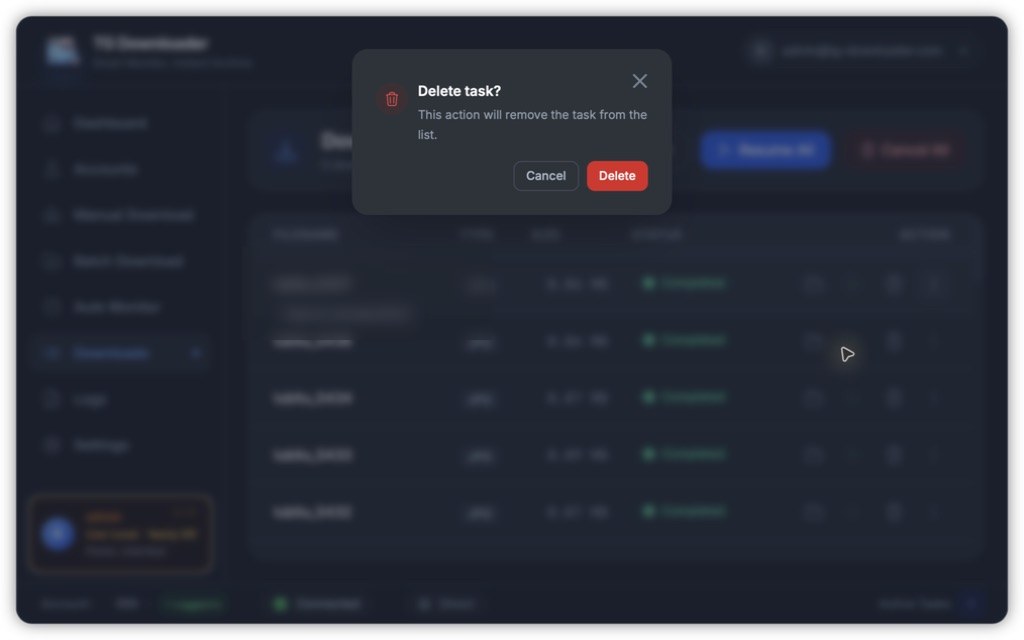
The bin only removes the list record. To delete the local file too, use More → Delete local file and confirm.
Statuses
| Status | Meaning |
|---|---|
| Waiting / Downloading / Paused | Queued, transferring or paused; can continue |
| Completed | Finished successfully |
| Exists | A same-name, same-size file was already present and skipped |
| Cancelled / Failed | Cancelled or errored |
| Source file missing | The message was deleted or contained no media |
| No permission | The active account has not joined the group |
Housekeeping
A very large list slows page loading. Use the bin or Clear Completed for records only. To free disk space, delete files in the download folder or use More → Delete local file. Pause an active download before trying to delete it.