Network Setup
Configure Telegram proxy for connection
Due to the particularity of Telegram servers, users in mainland China and some network-restricted areas must configure a proxy to connect to Telegram servers relatively normally. TG Downloader has a built-in independent network configuration module that is not affected by the system global proxy.
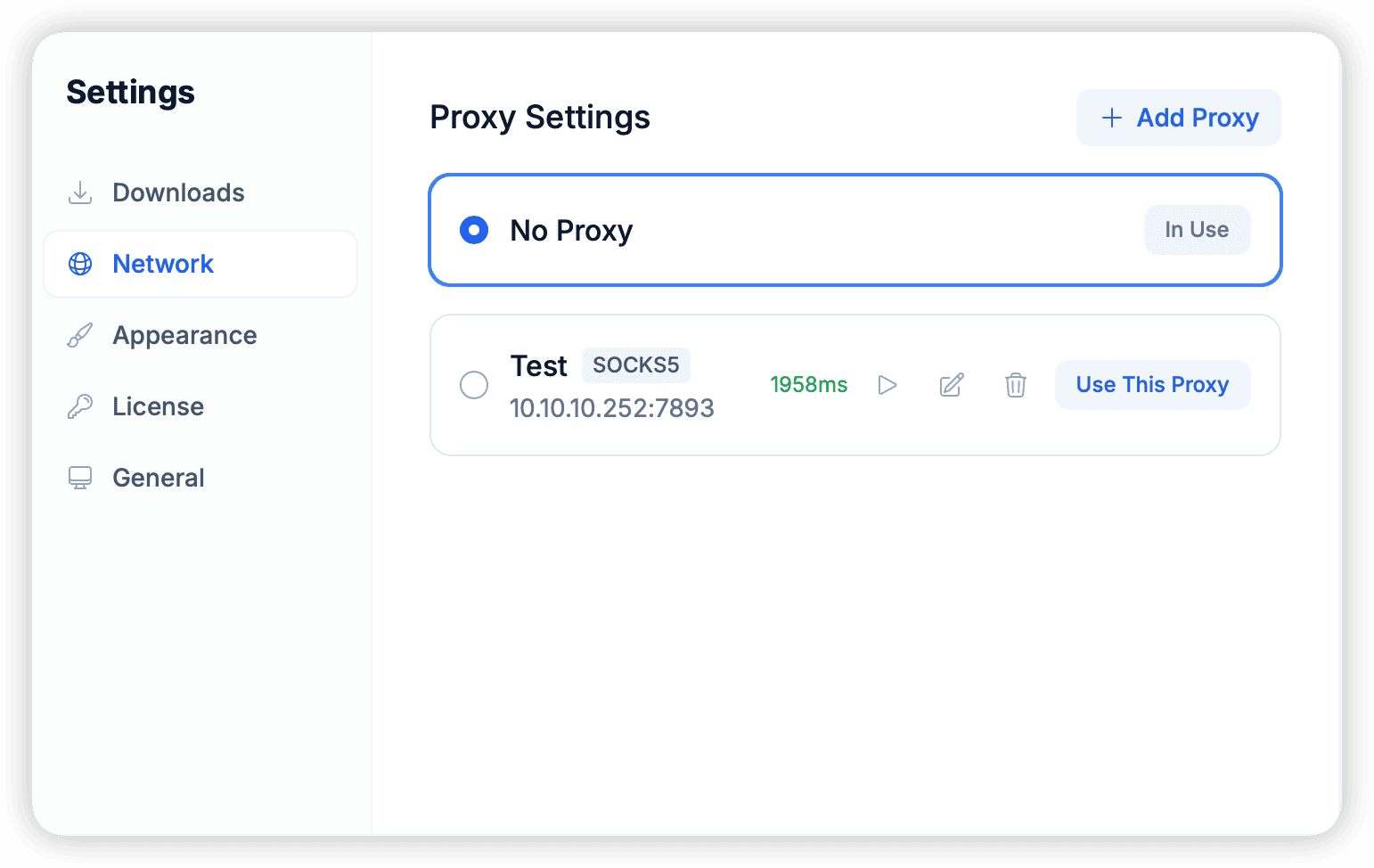
Configuration Steps
- Go to Settings -> Proxy.
- Enable Proxy: Check the “Enable Proxy Connection” switch.
- Select Protocol:
- SOCKS5 (Recommended): Best performance, suitable for large data transmission.
- HTTP/HTTPS: Strong compatibility.
- Fill in Parameters:
- Host: Usually
127.0.0.1(if using local proxy software). - Port: Please check the
Local Portdisplayed by your proxy software (e.g., v2rayN, Clash, Surfboard) (e.g., 7890, 10808). - Username/Password: Fill in if using a private proxy that requires authentication; usually leave blank for local proxies.
- Host: Usually
Connection Test
After filling in, be sure to click the Test Connection button below.
- ✅ Success: Displays green prompt “Connection Successful, Delay: 120ms”.
- ❌ Failure: Displays red error.
Common Failure Causes
- Port Error: The most common error. Please carefully check the
Local Portof the proxy software. - Proxy Software Not Running: Please ensure the underlying VPN/proxy tool is running and the system proxy is enabled OR LAN connection is allowed.
- Firewall Blocking: Please allow TG Downloader to access the network.
[!IMPORTANT] If you frequently encounter “Connection Timeout” or “Socket Closed” during use, please try changing the proxy software node or switching to the SOCKS5 protocol.
Common Desktop Proxy Tools Reference
If you are unsure about your local proxy port, you can refer to the default settings or locations of common software below:
Windows Users
1. v2rayN
- Location: Bottom status bar of the main interface.
- Default Port:
10808(SOCKS5),10809(HTTP). - Recommendation: Select SOCKS5 protocol in TG Downloader, enter port 10808.
2. Clash for Windows
- Location: Main Interface (General) -> Port (Mixed Port).
- Default Port:
7890(Mixed, shared by HTTP and SOCKS5). - Recommendation: Select SOCKS5 or HTTP in TG Downloader, enter port 7890.
macOS Users
1. ClashX / ClashX Pro
- Location: Click Cat Icon in Menu Bar -> Help -> Port Config.
- Default Port:
7890(SOCKS5),7890(HTTP). - Recommendation: Enter port 7890.
2. Clash Verge (Rev)
- Location: Settings -> Service Port.
- Default Port:
7897or7890.
3. Surge
- Location: Main Interface Overview -> SOCKS5 Listen Port.
- Default Port:
6153. - Recommendation: Prioritize SOCKS5 protocol, enter port
6153.
[!TIP] If you are using Clash based software and enabled “Allow LAN”, you can also use your local IP + Port to share the proxy with other devices in the same network.