Logs
Troubleshoot software issues via logs
Logs
When the software encounters exceptions like “download stuck” or “account login failed”, the log window is the “instant stethoscope” for diagnosing problems.
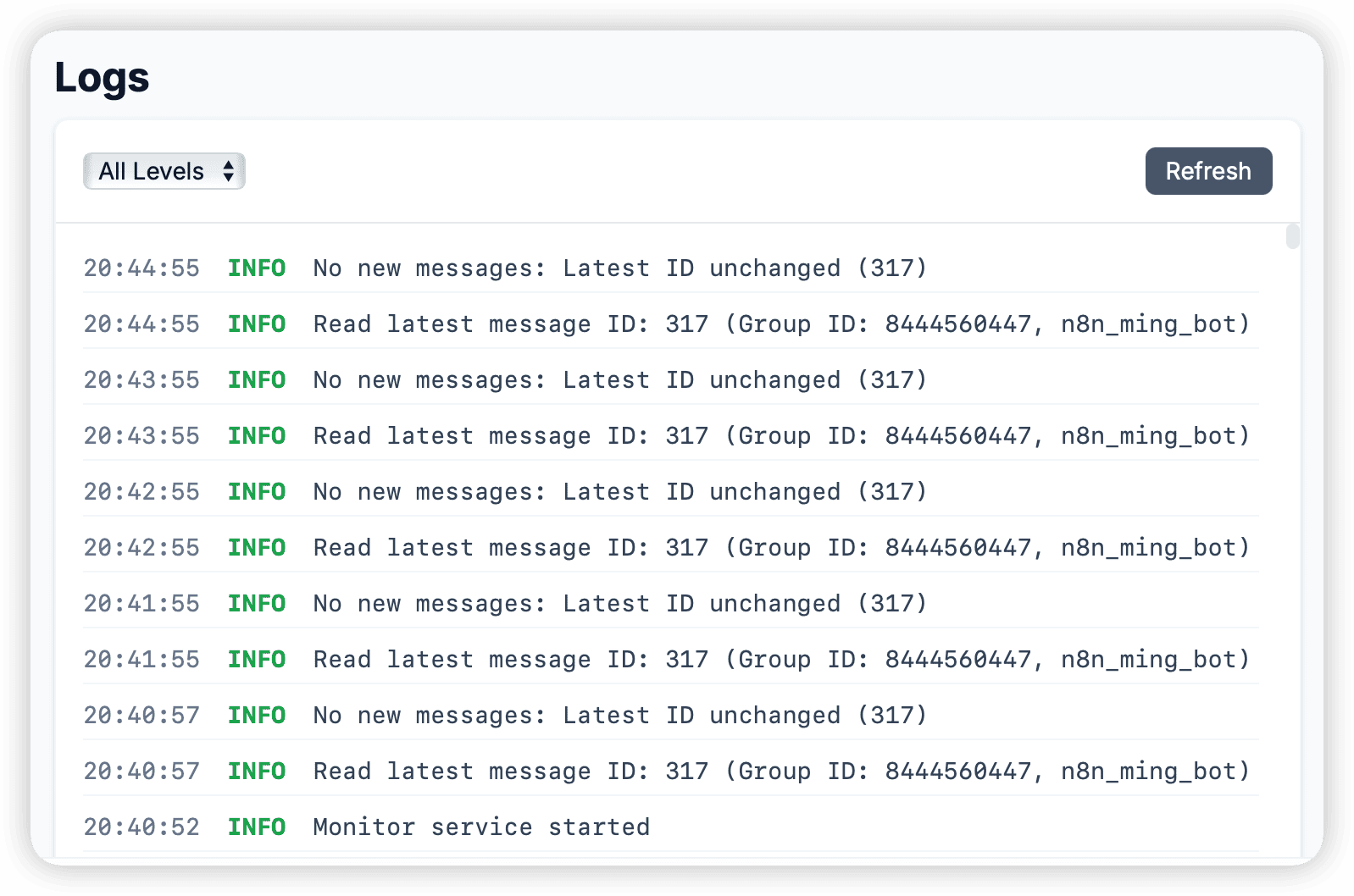
Real-time Log Stream
Click Logs in the Sidebar to enter. Logs are arranged in reverse chronological order, with the latest messages at the top.
Color Code Meaning
- [DEBUG]: Low-level information for development debugging only, usually can be ignored.
- [INFO]: Normal operating status (e.g., “Download started”, “Connected to DC4”).
- [WARNING]: Non-fatal issues (e.g., “Network jitter”, “Retrying chunk 3…”). The software will usually recover automatically.
- [ERROR]: Critical errors (e.g., “FloodWait_60s”, “Auth Key Invalid”). This means the current task is interrupted and requires manual attention.
Export Logs
If you need to ask customer service or developers for help, please follow these steps:
- Reproduce the problem you encountered (e.g., click the download button again).
- Click Export to File in the upper right corner of the log window.
- Send the generated
.logfile to technical support.
[!CAUTION] The log file may contain some of your non-sensitive configuration information, but before sending it to others, it is recommended to check it simply (the software defaults to automatically masking sensitive data such as Session keys).