Installation
Download and launch TG Downloader: no installer, open and use immediately
TG Downloader is a desktop Telegram downloader. It does not require a traditional setup wizard. In most cases you can download it and start using it right away (Windows runs as an .exe, macOS uses a .dmg drag-and-drop flow).
- Get the latest version from the homepage download section: tg-downloader.com/#download
- Check compatibility first: System Requirements
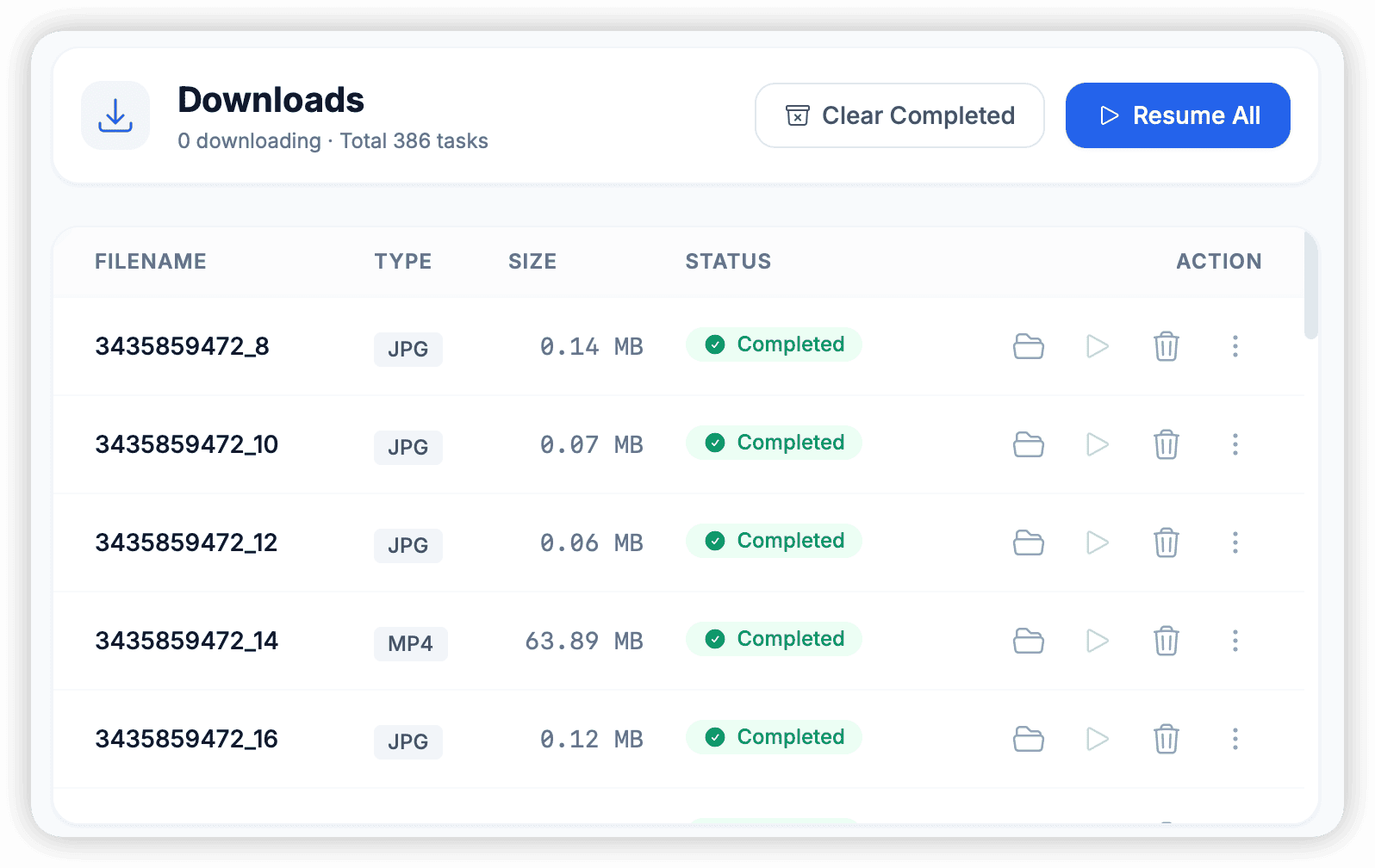
Direct download links (official)
These are the current official direct links (same as the homepage). If a link changes due to updates, use the homepage download section above.
| Platform | Download | Notes |
|---|---|---|
| Windows 10/11 | https://dl.tg-downloader.com/v1.20.2/TG-Downloader.exe | No installer, download and run |
| macOS (Intel) | https://dl.tg-downloader.com/v1.20.2/TG-Downloader-Intel.dmg | For Intel Macs |
| macOS (Apple Silicon) | https://dl.tg-downloader.com/v1.20.2/TG-Downloader-Arm64.dmg | For M1/M2/M3 Macs |
| Linux | Not publicly available yet | See System Requirements |
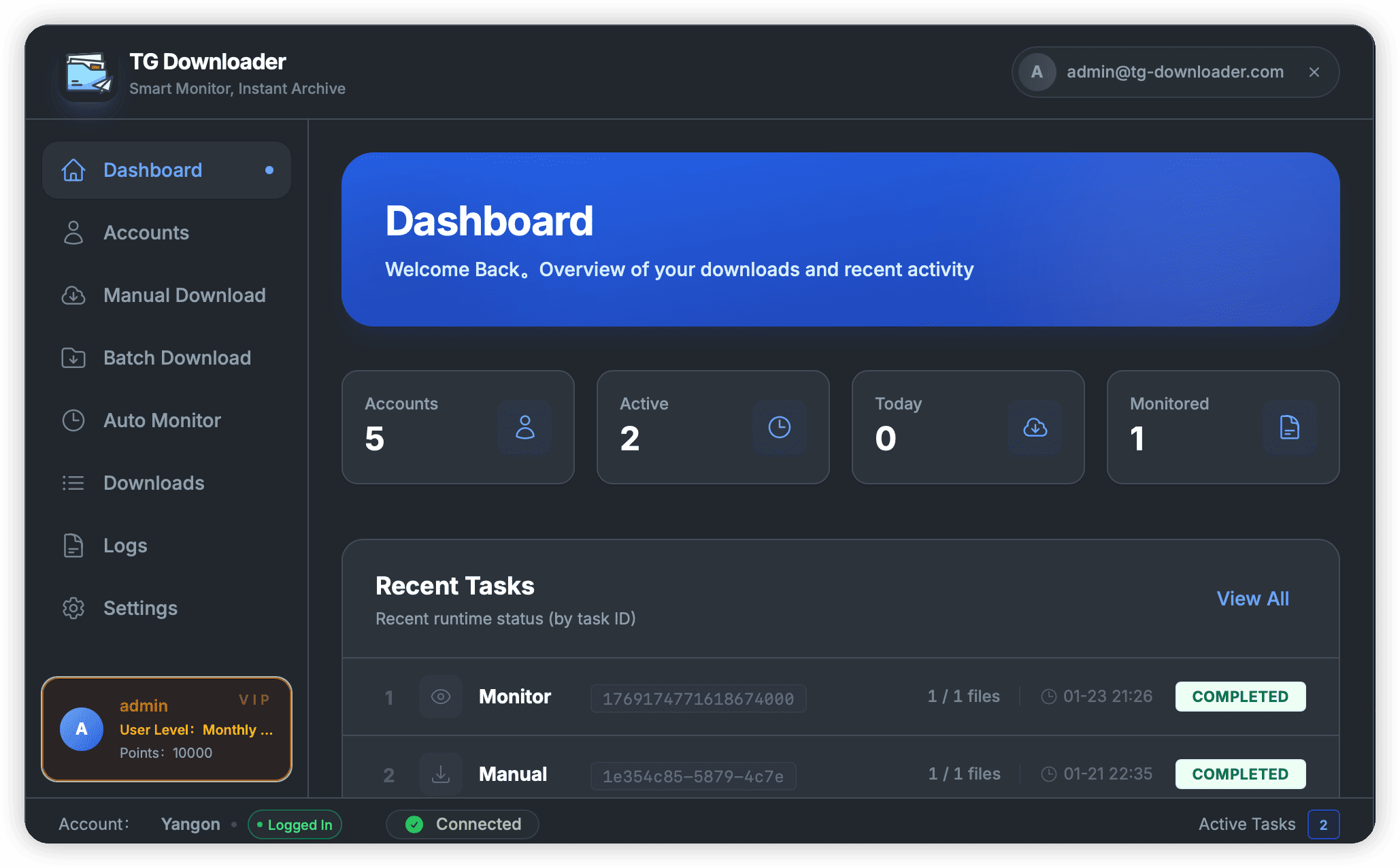
Windows quick start (download and open)
- Download
TG-Downloader.exeto any folder (e.g., Downloads). - Double-click to run.
- If Windows shows a SmartScreen warning:
- Click “More info” → “Run anyway” (wording may vary by version).
- Follow the in-app onboarding to sign in and start downloading Telegram videos, photos, and files.
[!TIP] Keep the app in a dedicated folder for easier updates. You can change the download folder anytime in settings (see Download Path).
macOS quick start (Intel / Apple Silicon)
1) Pick the right build
- Apple menu → “About This Mac”
- If it says Intel, download the Intel build; if it says Apple M1/M2/M3, download the Apple Silicon build
2) Download and launch
- Download and open the
.dmg. - Drag TG Downloader into the Applications folder.
- Open Applications and launch TG Downloader.
- If macOS blocks the app (“can’t be opened because it is from an unidentified developer”, etc.):
- System Settings → Privacy & Security → allow opening the app
- Or right-click the app in Applications → Open
[!TIP] On macOS, “drag to Applications” is simply copying the app. There is no installer wizard and no extra system components are installed.
After first launch: 3 recommended checks
- Review Network Setup to ensure Telegram connectivity is stable.
- Configure a proxy if needed: Proxy Settings.
- Learn the fastest workflow: Manual Download.
Troubleshooting (installation / launch)
The app won’t run after download
- Make sure you downloaded from the official links above (avoid repackaged third-party builds).
- Windows: handle SmartScreen prompts and confirm your OS meets System Requirements.
- macOS: allow the app in Privacy & Security, or right-click → Open for one-time authorization.
Do I need Telegram Desktop or API credentials?
- You don’t need Telegram Desktop installed (you only need a Telegram account).
- Most users don’t need to apply for API ID/Hash to get started. Related article: No API Key Needed.