Getting Started with TG Downloader
The complete beginner's guide to TG Downloader. Learn how to download Telegram videos, batch download channel content, and set up auto-monitoring in minutes. No API Key required!
Welcome to TG Downloader! This guide will help you master the most powerful Telegram download tool in just 5 minutes.
Why Choose TG Downloader?
Before we dive in, here’s what makes TG Downloader special:
- ✅ No API Key Required - Unlike other tools, you don’t need to apply for Telegram API credentials
- ✅ 100% Local Storage - All data stays on your device, never uploaded
- ✅ Multi-Account Support - Manage multiple Telegram accounts simultaneously
- ✅ Smart Auto-Monitoring - Automatically download new content from channels
Step 1: Download & Install
- Visit our official website and download TG Downloader
- Run the installer for your operating system (Windows/macOS)
- Launch the application
💡 Tip: On macOS, if you see “unidentified developer” warning, right-click the app and select “Open”.
Step 2: Add Your Telegram Account
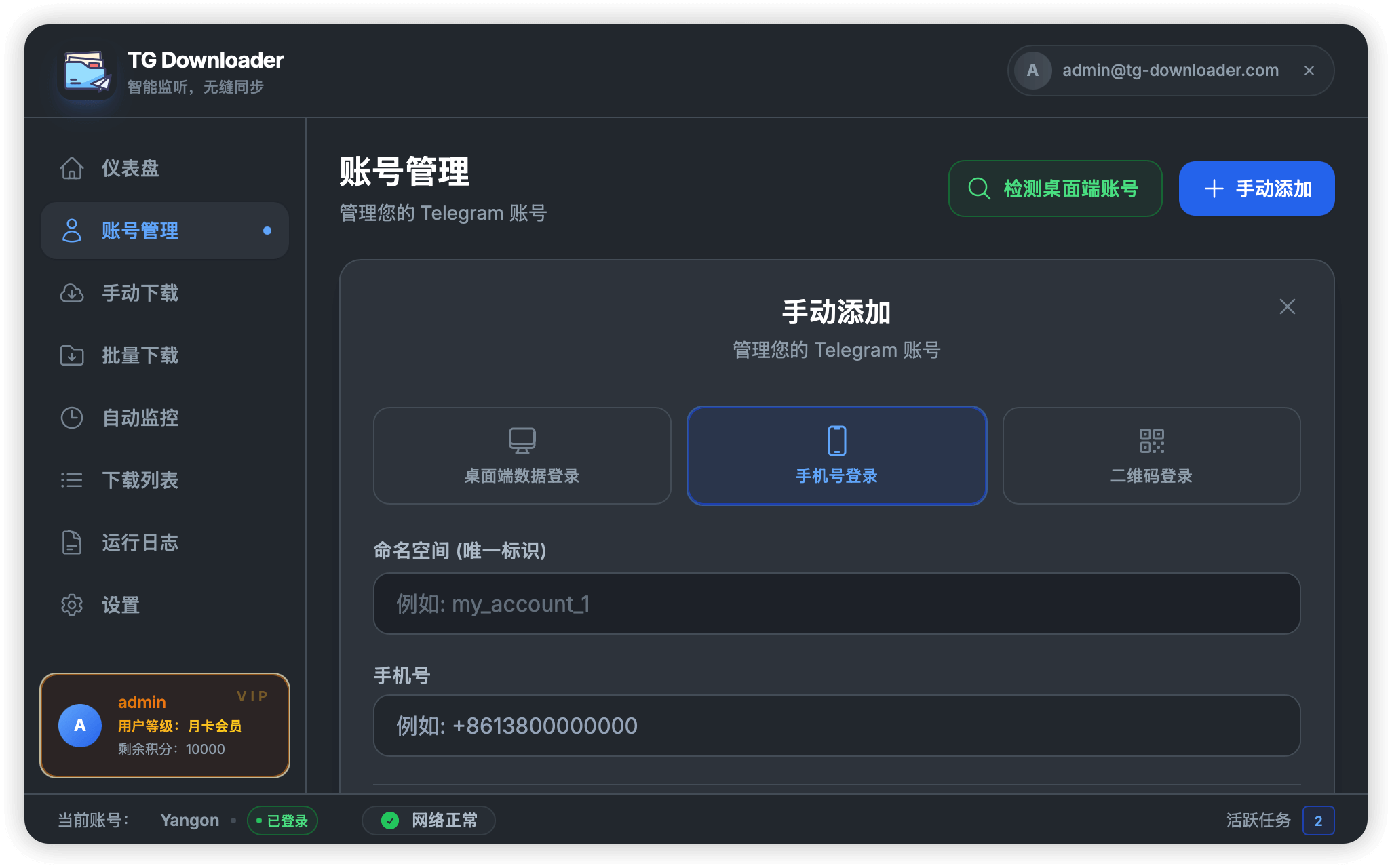
TG Downloader uses your Telegram account to access content. Here’s how to log in:
- Click “Accounts” in the sidebar
- Click ”+ Add Account”
- Choose your login method:
- 📱 Phone Verification - Enter phone number and verification code
- 📷 QR Code - Scan with your Telegram mobile app
- 💻 Desktop Import - Import from Telegram Desktop session
🔒 Security Note: Your login credentials are encrypted and stored locally only. They are NEVER uploaded to any server.
Step 3: Your First Download
Manual Download (Single File)
The quickest way to download a specific file:
- Find the message in Telegram
- Right-click and Copy Message Link
- Go to “Manual Download” in TG Downloader
- Paste the link and click “Start Download”
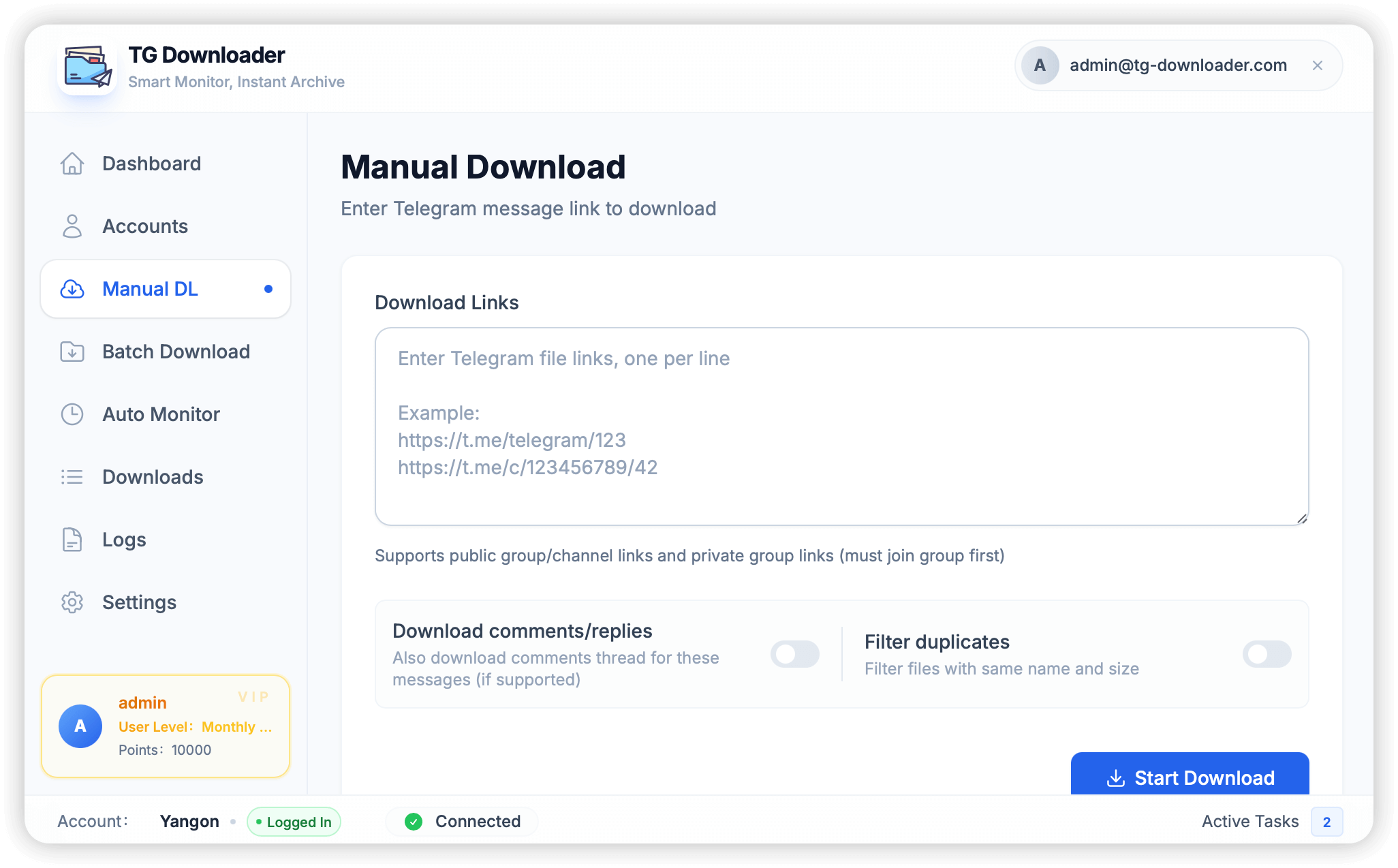
Supported link formats:
- Public channels:
https://t.me/channelname/123 - Private groups:
https://t.me/c/1234567890/123
Batch Download (Multiple Files)
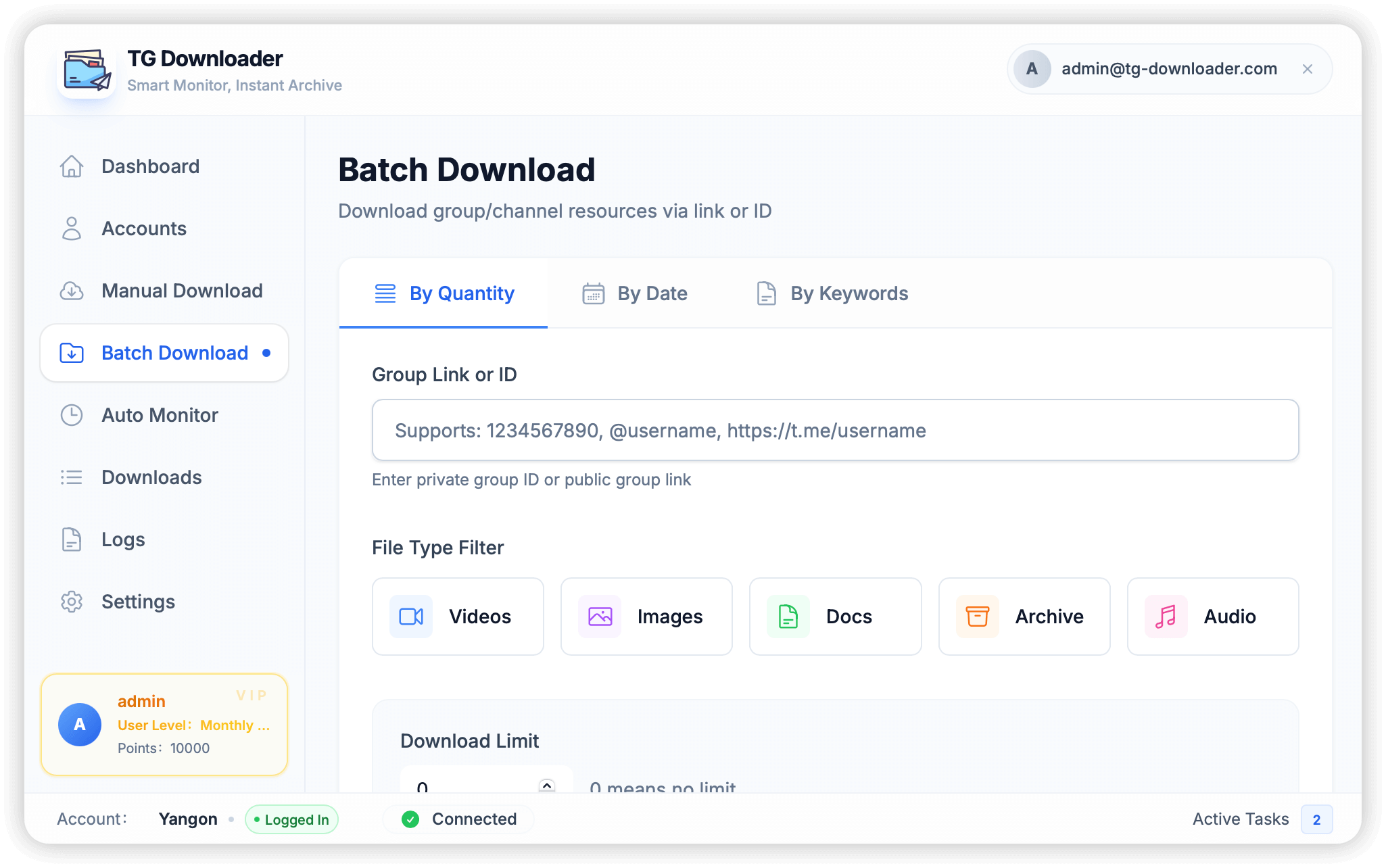
Want to download an entire channel’s content? Use Batch Download:
- Go to “Batch Download”
- Enter the channel link or ID
- Select your filters:
- 📹 Videos
- 🖼️ Images
- 📄 Documents
- 📦 Archives
- 🎵 Audio
- Choose download mode:
- By Quantity - Download latest N files
- By Date - Download files within date range
- By Keywords - Filter by specific keywords
- Click “Start Download”
Pro Tips:
- Set a file size limit to skip unwanted small thumbnails
- Use “Reverse Order” to download from oldest to newest
- Enable “Skip Duplicates” to avoid re-downloading
Step 4: Set Up Auto Monitoring
This is the most powerful feature! Auto Monitor watches channels 24/7 and downloads new content automatically.
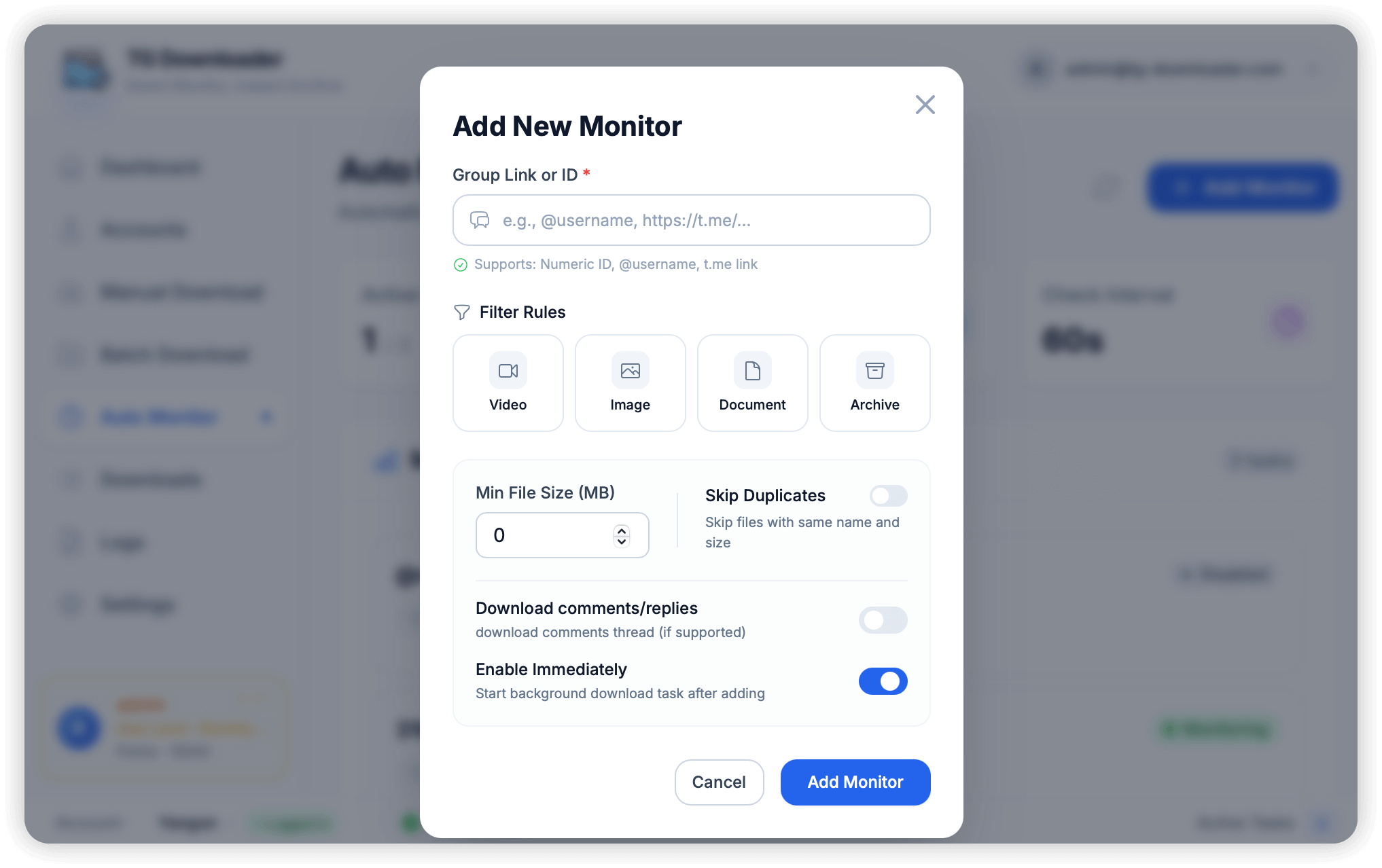
Create a Monitor Task
- Go to “Auto Monitor”
- Click ”+ Add Monitor”
- Enter the channel link or ID
- Configure filters:
- Select file types to monitor
- Set minimum file size
- Enable “Skip Duplicates”
- Toggle “Enable Immediately”
- Click “Add Monitor”
Monitor Dashboard
Once set up, you’ll see all your active monitors:
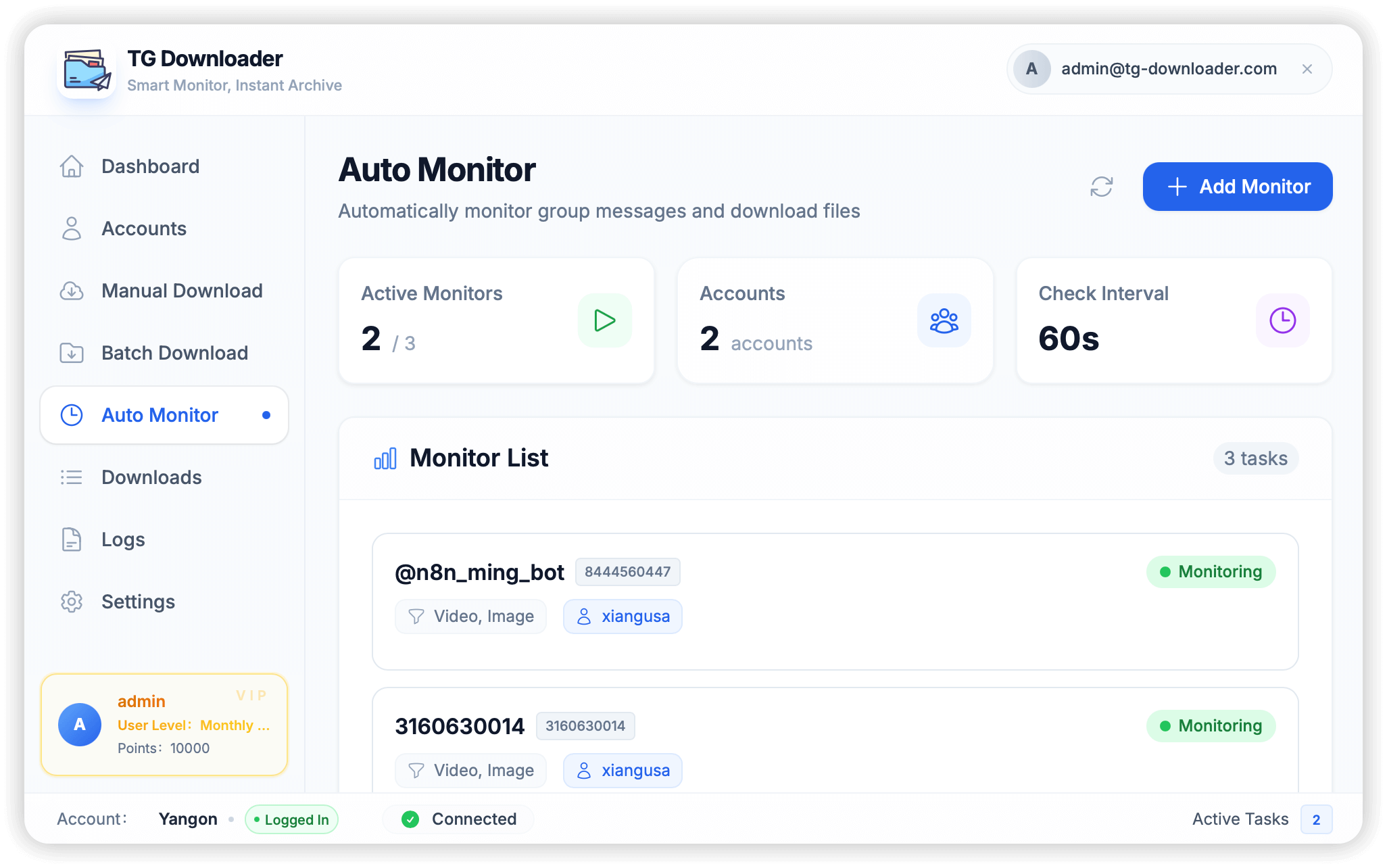
- Active Monitors: Shows running/total monitors
- Accounts: Number of accounts being used
- Check Interval: How often to check for new content (default: 60s)
Step 5: Manage Downloads
Download List
Track all your downloads in real-time:
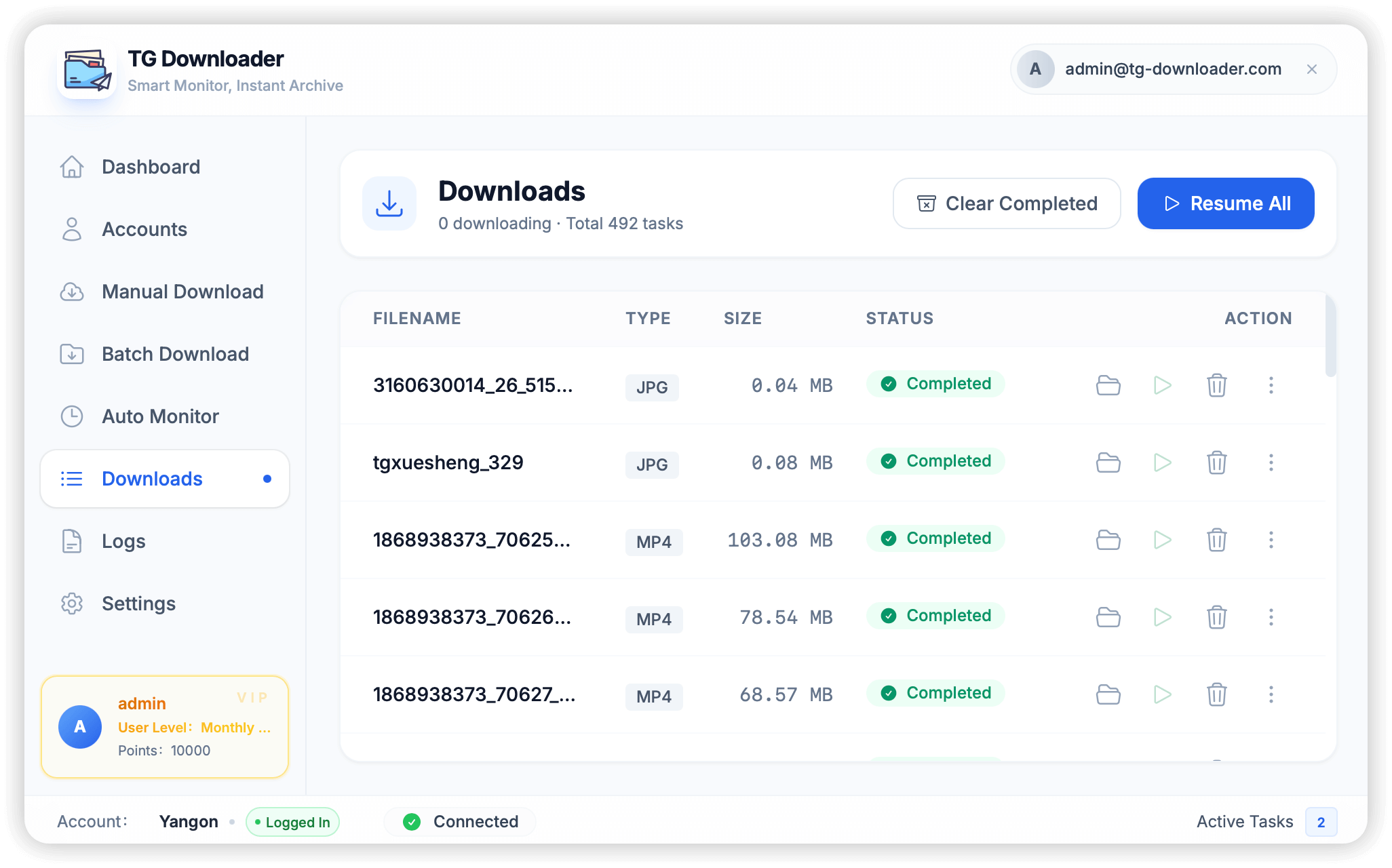
- View file name, type, size, and status
- Pause/Resume individual downloads
- Batch operations: Resume All, Clear Completed
- Open file location with one click
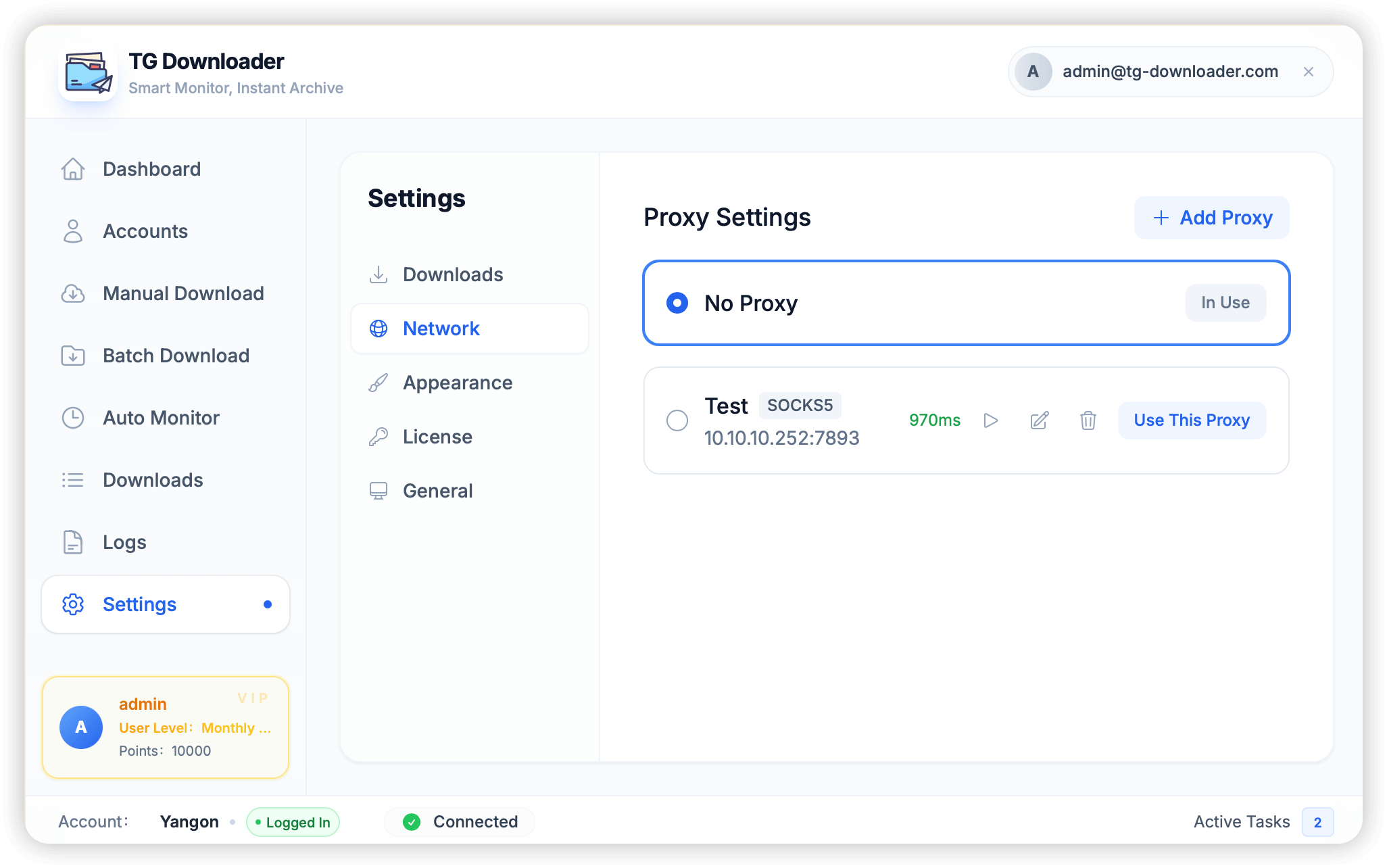
Configure Proxy (If Needed)
If you’re in a region where Telegram is restricted:
- Go to Settings → Network
- Click ”+ Add Proxy”
- Enter your proxy details (HTTP or SOCKS5)
- Click “Use This Proxy”
VIP Membership Benefits
Free users get daily download points. Upgrade to VIP for:
- 🚀 Unlimited Downloads - No daily limits
- ⚡ Faster Downloads - Priority queue
- 👥 More Accounts - Manage 10+ accounts
- 📧 Priority Support - Get help faster
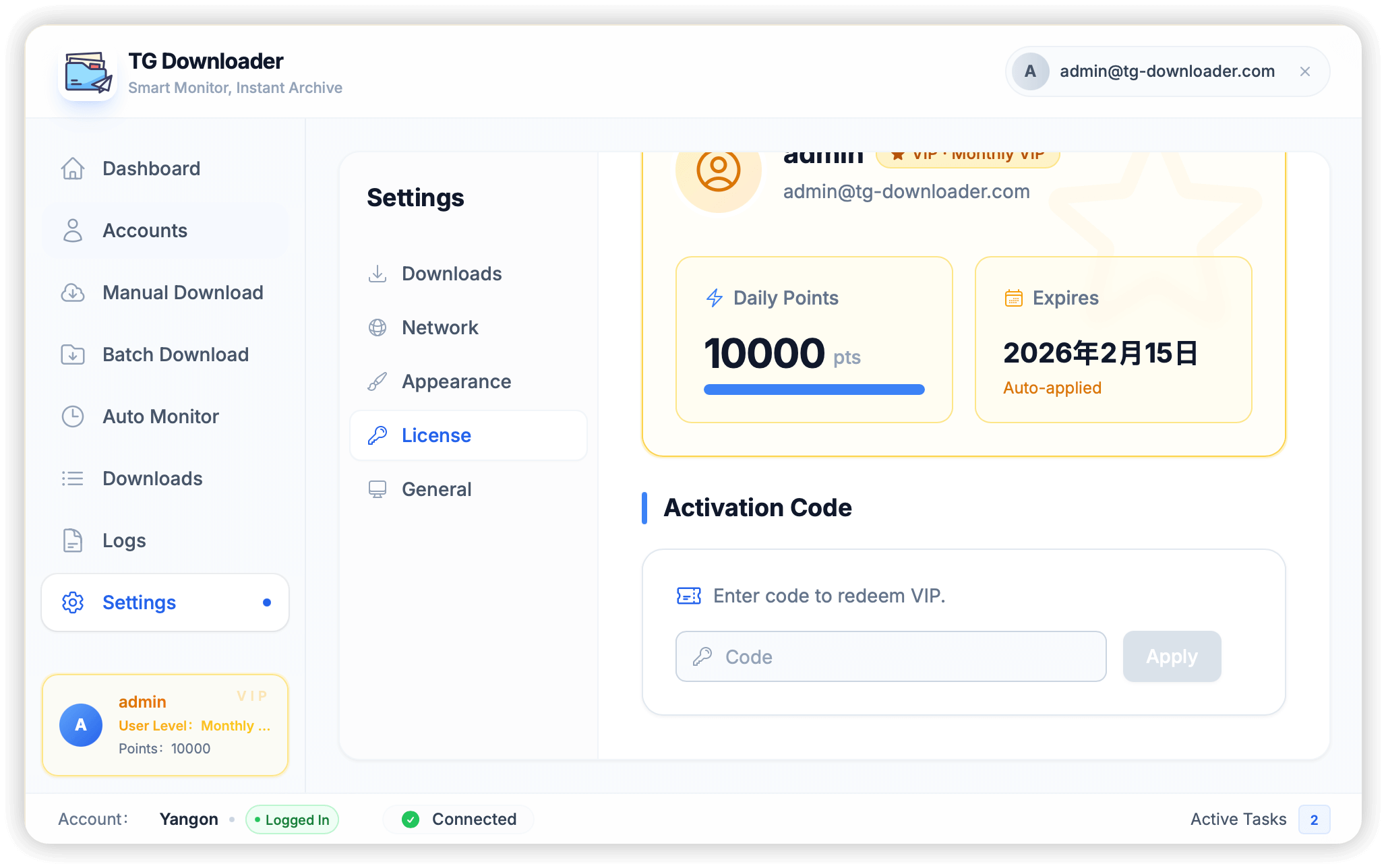
To activate VIP:
- Go to Settings → License
- Enter your activation code
- Click Apply
Common Questions
Q: Will my account get banned?
Normal use won’t result in bans. Just avoid:
- Downloading thousands of files in minutes
- Frequent login/logout cycles
Q: How do I download from private groups?
You must be a member of the group. Copy a message link from within the group - the software will extract the group ID automatically.
Q: Where are my downloaded files?
Default location: Downloads/TGDownloader/[ChannelName]/
You can change this in Settings → Downloads → Save Path.
Next Steps
Now that you’re set up, explore these advanced features:
- 📖 Batch Download Tips - Optimize your bulk downloads
- 🔒 Security Guide - Best practices for safe usage
- 📚 Full Documentation - Complete feature reference
Questions? Check our FAQ or join our Telegram community.
Happy downloading! 🎉