Telegram Channel Download Tips: Master Batch Download Like a Pro
Advanced tips for using TG Downloader to efficiently download and backup Telegram channel content. Learn date filtering, keyword search, and optimization tricks.
Telegram Channel Download Tips: Master Batch Download Like a Pro
Telegram hosts an incredible wealth of quality content—from tutorial videos to valuable resources. Many are worth preserving permanently. This guide shares advanced tips for efficiently backing up this content using TG Downloader.
Why Backup Telegram Content?
Before diving into techniques, let’s understand why backing up matters:
| Reason | Explanation |
|---|---|
| 🗑️ Content Deletion | Channel admins can delete messages anytime |
| 📴 Offline Access | View important materials without internet |
| 📁 Organization | Easier to categorize and manage locally |
| 🔐 Account Issues | Don’t lose saved content if account problems arise |
| 💾 Archival | Preserve valuable content for future reference |
Three Download Methods Explained
TG Downloader offers three powerful download methods. Choose based on your needs:
Method 1: Manual Download (Quick Single Files)
Best for: Downloading 1-5 specific files quickly
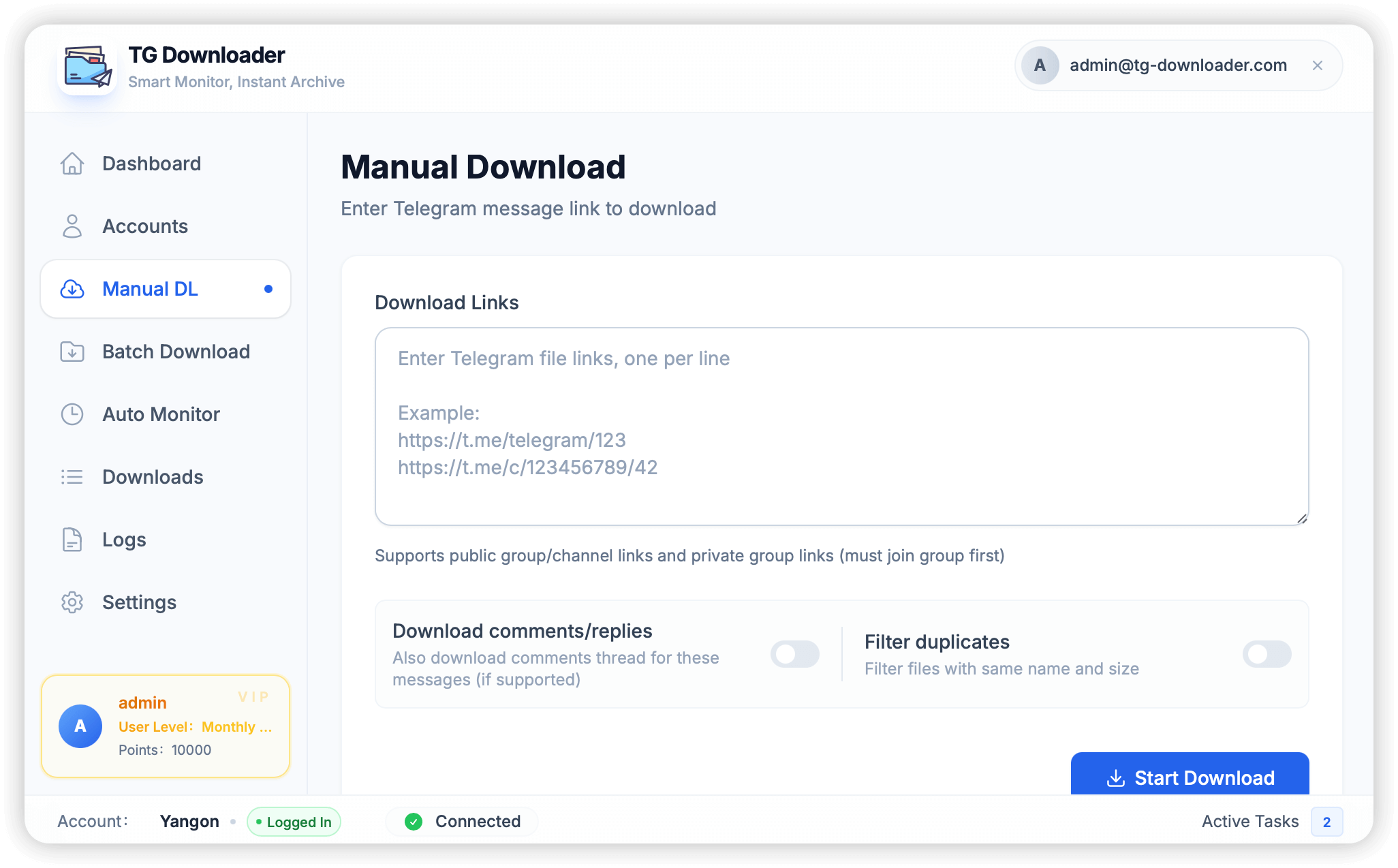
Steps:
- Find the target message in Telegram
- Right-click → Copy Message Link
- Paste into TG Downloader’s Manual Download area
- Click Download
Pro Tips:
- You can paste multiple links at once (one per line)
- Enable “Download Comments/Replies” to get discussion threads
- Works for both public channels and private groups (if you’re a member)
Method 2: Batch Download (Historical Content)
Best for: Downloading entire channel archives or specific content collections
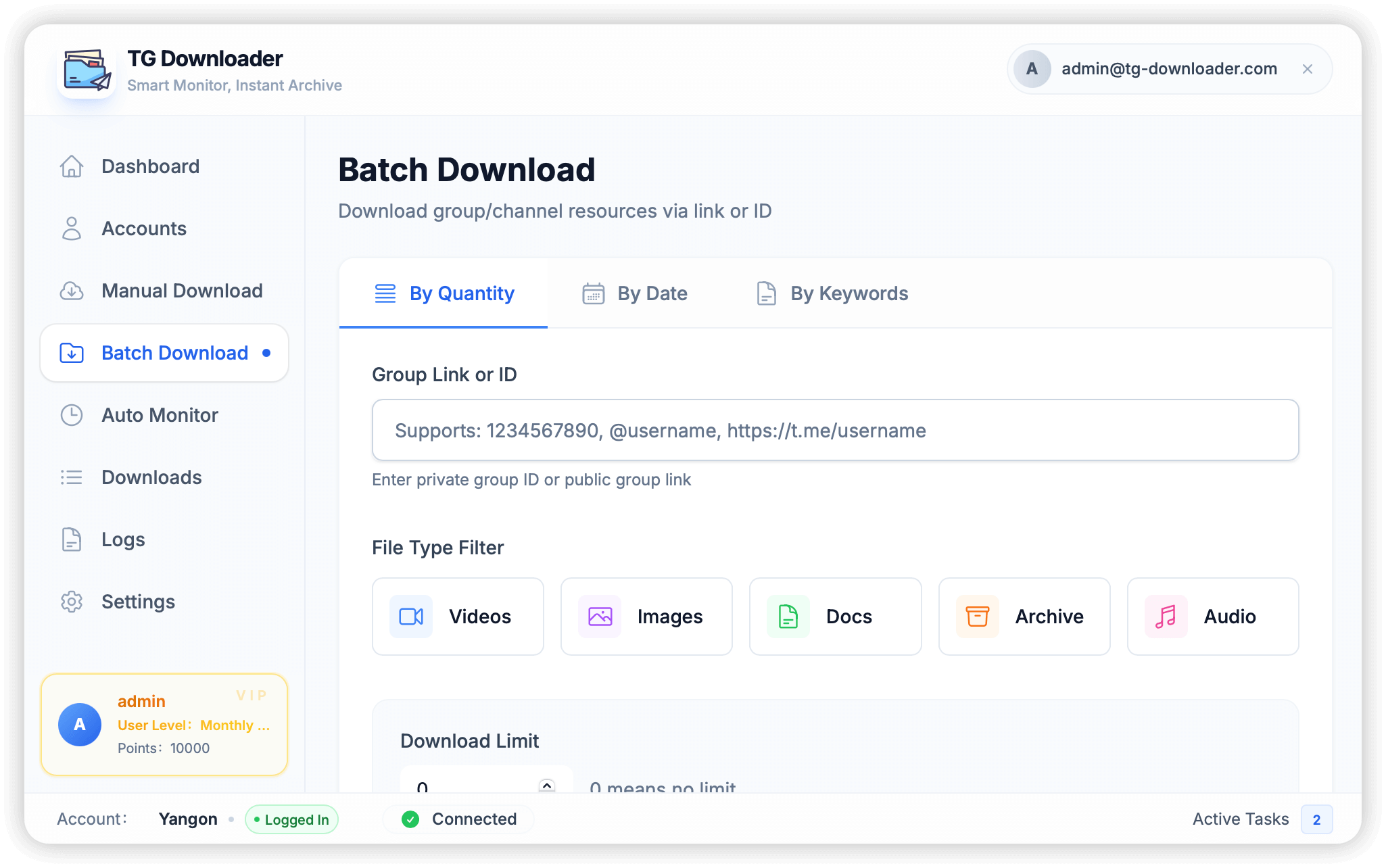
Option A: By Quantity
Download the latest N files from a channel:
- Enter channel username or link
- Set Download Limit (e.g., 500 files)
- Select file types (Videos, Images, Docs, etc.)
- Click Start
Option B: By Date Range
Download content from a specific time period:
- Switch to By Date tab
- Set Date From and Date To
- Select file types
- Enable Reverse Order if you want oldest-first
Option C: By Keywords
Precisely filter content using search terms:
- Switch to By Keywords tab
- Enter search keywords (e.g., “Python tutorial”)
- Select file types
- The software scans messages first, then shows matching results
Advanced Filtering Tips:
✅ Use file type filters to skip irrelevant content
✅ Set minimum file size to exclude thumbnails (e.g., >1MB)
✅ Enable "Skip Duplicates" to avoid re-downloading
✅ Use date ranges to narrow down specific periods
Method 3: Auto Monitoring (Continuous Sync)
Best for: Staying updated with frequently-publishing channels
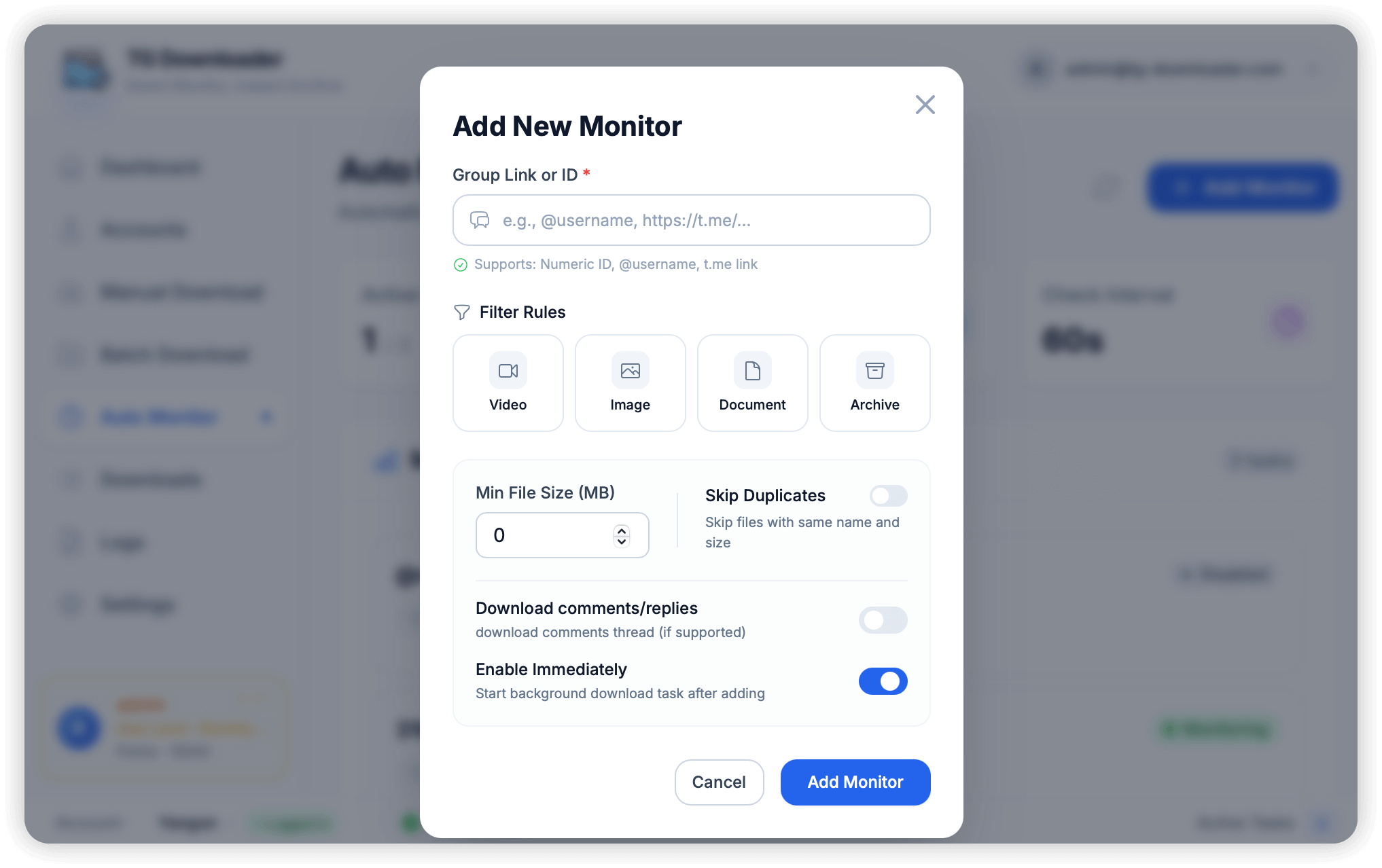
Setup:
- Go to Auto Monitor → Add Monitor
- Enter channel link or ID
- Configure filter rules (file types, min size)
- Enable Immediately to start right away
- Click Add Monitor
Monitor Dashboard:
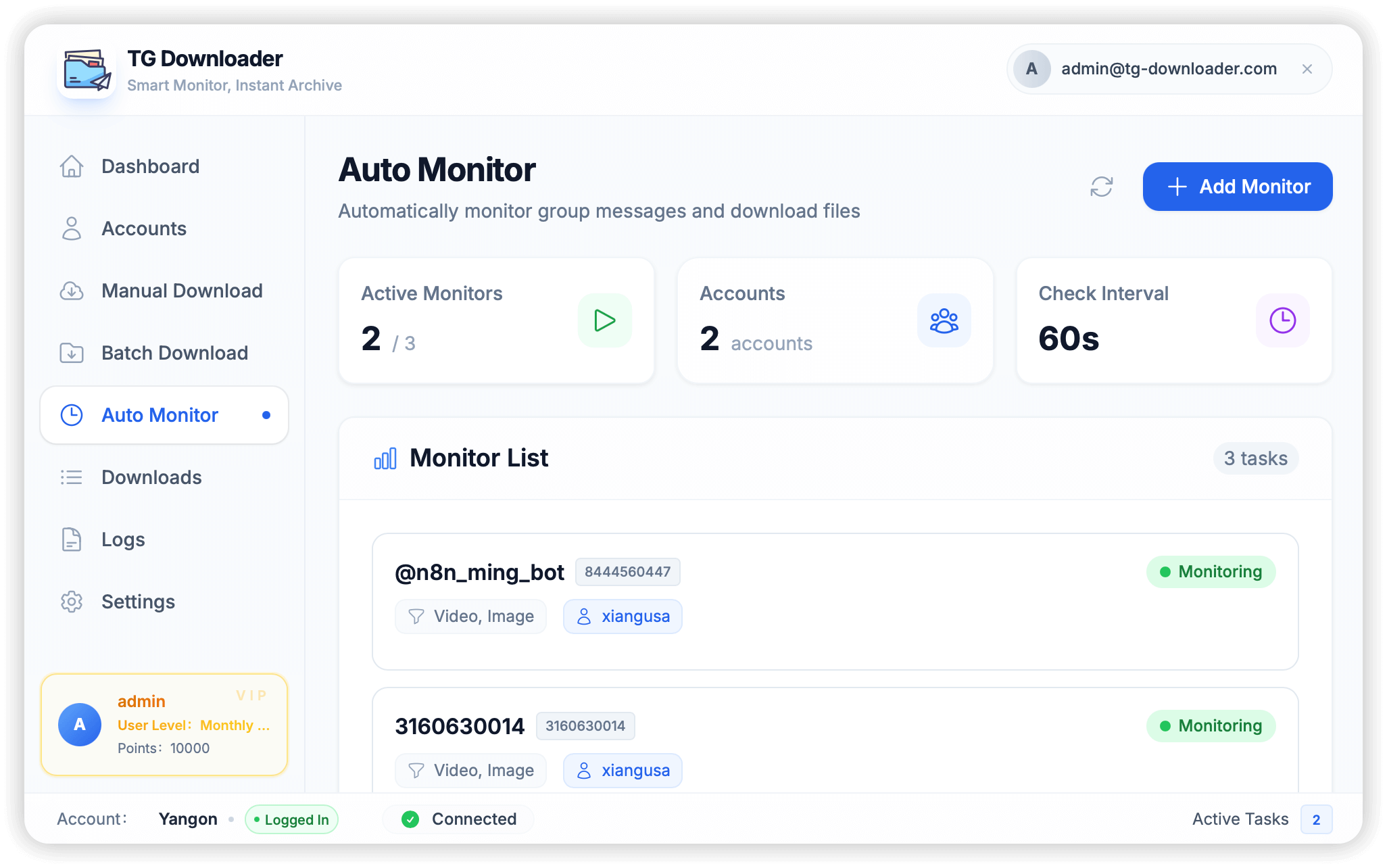
Your monitors run 24/7, automatically downloading new content as it’s published.
Optimization Tips for Power Users
1. Optimal Parallel Download Settings
Set appropriate parallel downloads based on your bandwidth:
| Connection Type | Recommended Parallel Tasks |
|---|---|
| Basic Broadband (10-50 Mbps) | 3-5 tasks |
| Fast Connection (100+ Mbps) | 5-10 tasks |
| Fiber/Very Fast | 10-15 tasks |
⚠️ Warning: Too many parallel tasks can trigger Telegram’s rate limiting. Start low and increase gradually.
2. Smart Keyword Filtering
For channels with mixed content, use keyword filtering strategically:
Include Keywords:
- Only download messages containing specific terms
- Example: “tutorial”, “PDF”, “course”
Exclude Keywords:
- Skip messages with unwanted terms
- Example: “sponsor”, “ad”, “promo”
3. Custom File Naming
Proper naming helps manage downloaded content:
Recommended Pattern:
{channel}_{date}_{filename}This clearly shows the source and publish date for each file.
4. Storage Management
Downloading many videos consumes significant storage. Best practices:
- ✅ Regularly check download folder size
- ✅ Set maximum file size limits for specific tasks
- ✅ Use external drives for large collections
- ✅ Clean up unwanted content periodically
- ✅ Consider compressing image collections
Troubleshooting Common Issues
Q: Download speed is slow?
Solutions:
- Check your network connection
- Reduce parallel download count
- Try using a different proxy server
- Consider using a Telegram Premium account (faster downloads)
- Switch to a different account if rate-limited
Q: Some files failed to download?
Possible Causes:
| Cause | Solution |
|---|---|
| File was deleted | Cannot be recovered |
| Network timeout | Click retry or restart task |
| Insufficient disk space | Free up storage |
| Rate limited | Wait or switch account |
Check error logs in Logs section for detailed information.
Q: Can’t access private group?
Make sure:
- The account is a member of the group
- You’re using the correct link format (
https://t.me/c/ID/msgID) - The group hasn’t been deleted or made more private
Real User Scenarios
Scenario 1: Backing Up an Educational Channel
“I found a channel with 500+ programming tutorials. Used Batch Download → By Date to get everything from the past year. Saved to organized folders by topic.”
Scenario 2: Archiving Before Leaving a Group
“Needed to leave a private study group but wanted to keep all PDFs. Used Batch Download → By Keywords with ‘PDF’ filter. Got exactly what I needed.”
Scenario 3: Continuous Resource Collection
“Set up Auto Monitor on 5 design resource channels. Every morning, I have new assets automatically downloaded and organized.”
Summary
Using TG Downloader to backup Telegram content is straightforward:
- Choose the right method based on your needs
- Configure filters to get exactly what you want
- Set reasonable limits to avoid rate limiting
- Organize files with smart naming and folders
Happy archiving! 📥
Need help? Check our documentation or FAQ.